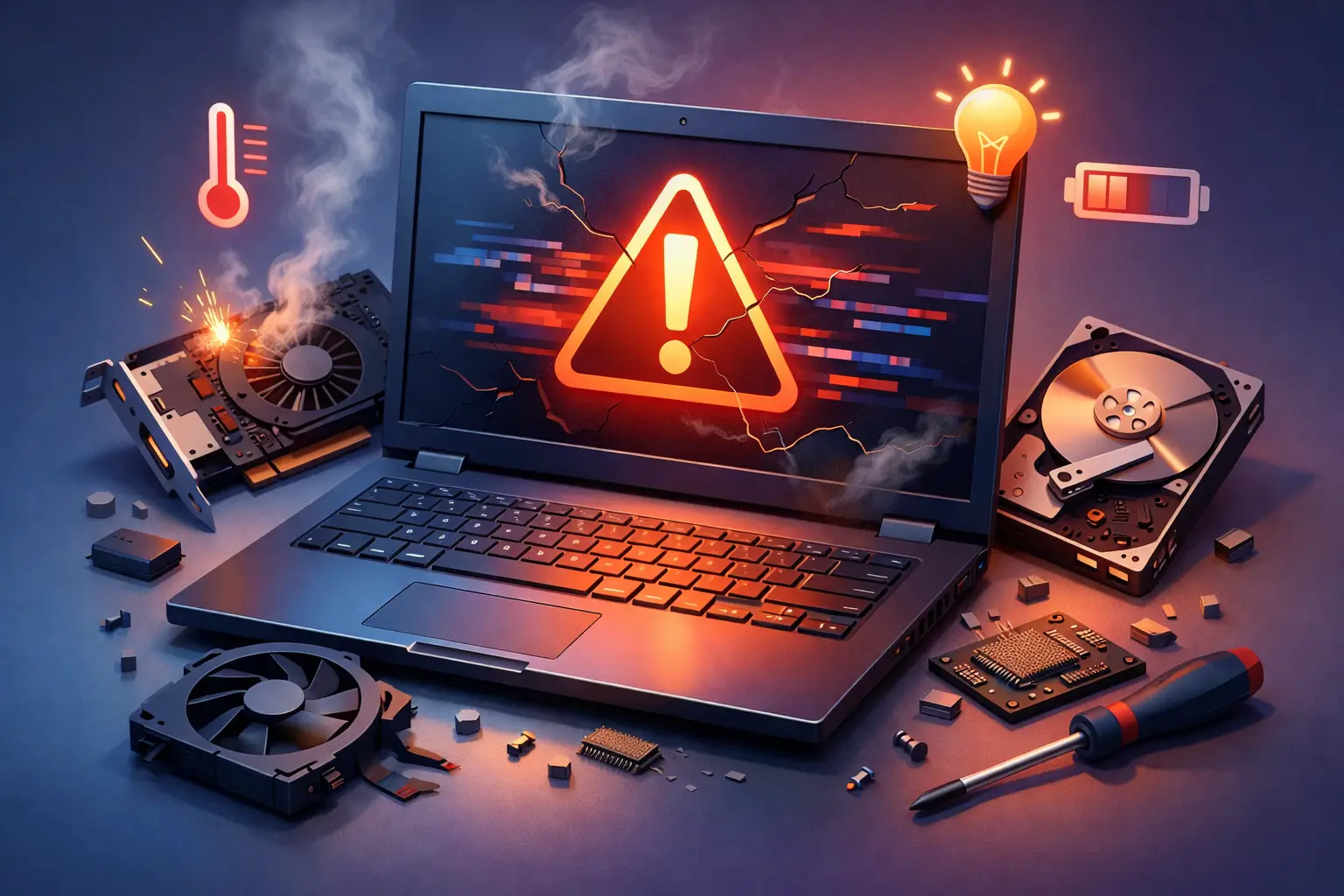
A laptop usually gives you a little warning before it quits. Maybe it starts freezing during simple tasks, the fan suddenly sounds like it is working overtime, or the battery drops from 40 percent to dead in minutes. If you are wondering how to know if laptop hardware is failing, the key is to look for patterns instead of treating every glitch like random bad luck.
Software problems can mimic hardware trouble, so it is easy to second-guess what you are seeing. But when the same symptoms keep coming back, especially across different apps and restarts, there is a good chance a physical component is starting to wear out. Catching that early can save your data, reduce downtime, and keep a smaller repair from becoming a full replacement.
How to know if laptop hardware is failing
The biggest clue is consistency. A one-time crash after a bad update is annoying, but it does not always mean the laptop itself is failing. Repeated crashes, startup issues, strange noises, overheating, charging problems, or a screen that flickers even when nothing else changes are different. Those signs often point to memory, storage, battery, cooling, power, or motherboard trouble.
What makes this tricky is that failing hardware does not always fail all at once. A hard drive may work fine some mornings and lock up the system by afternoon. A battery may still charge, but only hold that charge for ten minutes. A fan may spin, but not well enough to keep temperatures under control. Hardware failure is often gradual until it suddenly is not.
The most common warning signs
Frequent freezing and random restarts
If your laptop locks up while browsing, opening files, or switching between normal programs, pay attention to how often it happens. Random freezing can point to failing RAM, a bad storage drive, overheating, or motherboard issues. If the machine also restarts on its own or throws blue screen errors, that narrows the field even more toward hardware.
The trade-off here is that operating system corruption can cause similar behavior. That is why pattern matters. If updates, cleanup, and basic software troubleshooting do not improve stability, hardware becomes much more likely.
Unusual noises
Laptops are not completely silent, but new clicking, grinding, buzzing, or repeated whirring should not be ignored. Clicking is especially concerning in older laptops with mechanical hard drives. That sound can mean the drive is struggling to read data, and that is one of the clearest signs you should back up files immediately.
A loud fan is not always a failed fan. Sometimes it is just dust buildup or blocked airflow. But if the laptop is running hot and the fan sounds rough, inconsistent, or much louder than normal, the cooling system may need attention.
Overheating during normal use
A warm laptop is normal. A laptop that gets hot enough to slow down, shut off, or become uncomfortable to use during email, web browsing, or office work is not. Overheating can come from clogged vents, dried thermal paste, a weak fan, or internal damage affecting power delivery.
Heat is one of those problems that starts small and creates bigger ones. It can shorten the life of your battery, storage, and motherboard over time. If you are dealing with repeated overheating, it is better to check it sooner than wait for a no-start situation.
Battery and charging problems
Battery wear happens naturally, but there is a difference between an older battery and a failing power system. If the battery drains unusually fast, charges very slowly, stops at a certain percentage, or the laptop only works when plugged in, the battery may be near the end of its life. If it does not reliably detect the charger, the problem could also involve the charging port, power adapter, or internal power circuitry.
One warning sign people miss is battery swelling. If the keyboard looks raised, the trackpad becomes hard to click, or the bottom case starts separating, stop using the laptop and get it checked right away. A swollen battery is a safety issue, not just a performance issue.
Display problems that keep returning
Screen flickering, lines across the display, dim spots, discoloration, or a screen that cuts in and out when you move the lid can all point to hardware trouble. Sometimes the issue is the panel itself. Other times it is the display cable, hinge wear, graphics hardware, or motherboard connection.
Context matters here. If an external monitor works perfectly while the laptop screen does not, the problem is often local to the display assembly. If both screens show visual issues, the graphics system may be involved.
Slow performance that feels different than usual
Not all slowness is hardware failure. Too many startup apps, low storage space, and heavy browser use can drag a laptop down. But if the machine suddenly becomes painfully slow when opening files, saving documents, or booting up, storage trouble is a strong possibility.
Traditional hard drives tend to slow down before they fail completely. Solid-state drives can also fail, though their symptoms may look more like sudden file errors, missing data, or boot problems. If your laptop struggles to find the operating system or takes forever to access basic files, do not wait too long.
Signs by component
Hard drive or SSD
Storage failure often shows up as long boot times, file corruption, missing folders, system crashes while saving or opening files, or odd clicking in laptops with older hard drives. If the laptop says the drive cannot be found, that is more urgent.
RAM
Failing memory can cause crashes, blue screens, apps closing unexpectedly, and problems that seem random. The system may work fine one moment and freeze during a simple task the next.
Battery
A weak battery loses charge quickly, may not fully charge, or causes shutdowns long before the battery meter says it should. Swelling is the red-flag symptom.
Fan and cooling system
Watch for loud fan noise, heat buildup, throttling, and sudden shutdowns. Dust and wear are common causes, but the result is the same – too much heat and less stability.
Motherboard or power circuit
These problems can be less obvious at first. The laptop may not power on consistently, may lose power when moved, may fail to recognize charging, or may act unpredictably even after other components check out.
When it is probably not hardware
If the problem started right after a major software update, new antivirus install, or a full drive from years of accumulated files, hardware may not be the issue. Malware, driver conflicts, and operating system corruption can all create symptoms that look serious.
That said, most people do not need to sort that out alone. What matters is getting a proper diagnosis before spending money on the wrong fix. A calm, methodical check can tell you whether the issue is a bad battery, a failing SSD, overheating, or just software cleanup.
What you should do first
Back up anything important as soon as possible. If the laptop still turns on, copy documents, photos, work files, passwords, and anything else you cannot afford to lose. Hardware problems tend to get worse, not better.
After that, stop pushing the laptop harder than necessary. If it is overheating, shutting down, making unusual noises, or showing battery swelling, continued use can increase the damage. In a business setting, that also means more risk of lost time and interrupted work.
If you are in the Salt Lake City area and need a fast answer, getting the machine diagnosed early is usually the least expensive move. Don’t Panic! Computer Repair handles this kind of issue on-site, which means you do not have to waste time packing up equipment and waiting around at a shop just to learn whether the laptop is worth repairing.
How to know if laptop hardware is failing or just aging
Age alone is not failure. Plenty of older laptops work fine with a new battery, a storage upgrade, or cooling service. What separates normal aging from active failure is the combination of symptoms and the speed at which they are getting worse.
A battery that lasts less than it used to is aging. A battery that swells or causes random shutdowns is failing. A laptop that runs a little warm under heavy load may be normal. A laptop that overheats during basic use is not. An older computer that feels somewhat slow can often be improved. A computer that freezes, corrupts files, or cannot detect its own drive needs attention now.
The good news is that not every hardware problem means the laptop is done. Sometimes the fix is straightforward. Sometimes the smart move is replacing the machine instead of repairing it. The right answer depends on the part that is failing, the age of the system, and how important that device is to your daily work.
If your laptop has started acting differently and the issues are repeating, trust that signal. A little early attention can save your files, your time, and a lot of frustration later.