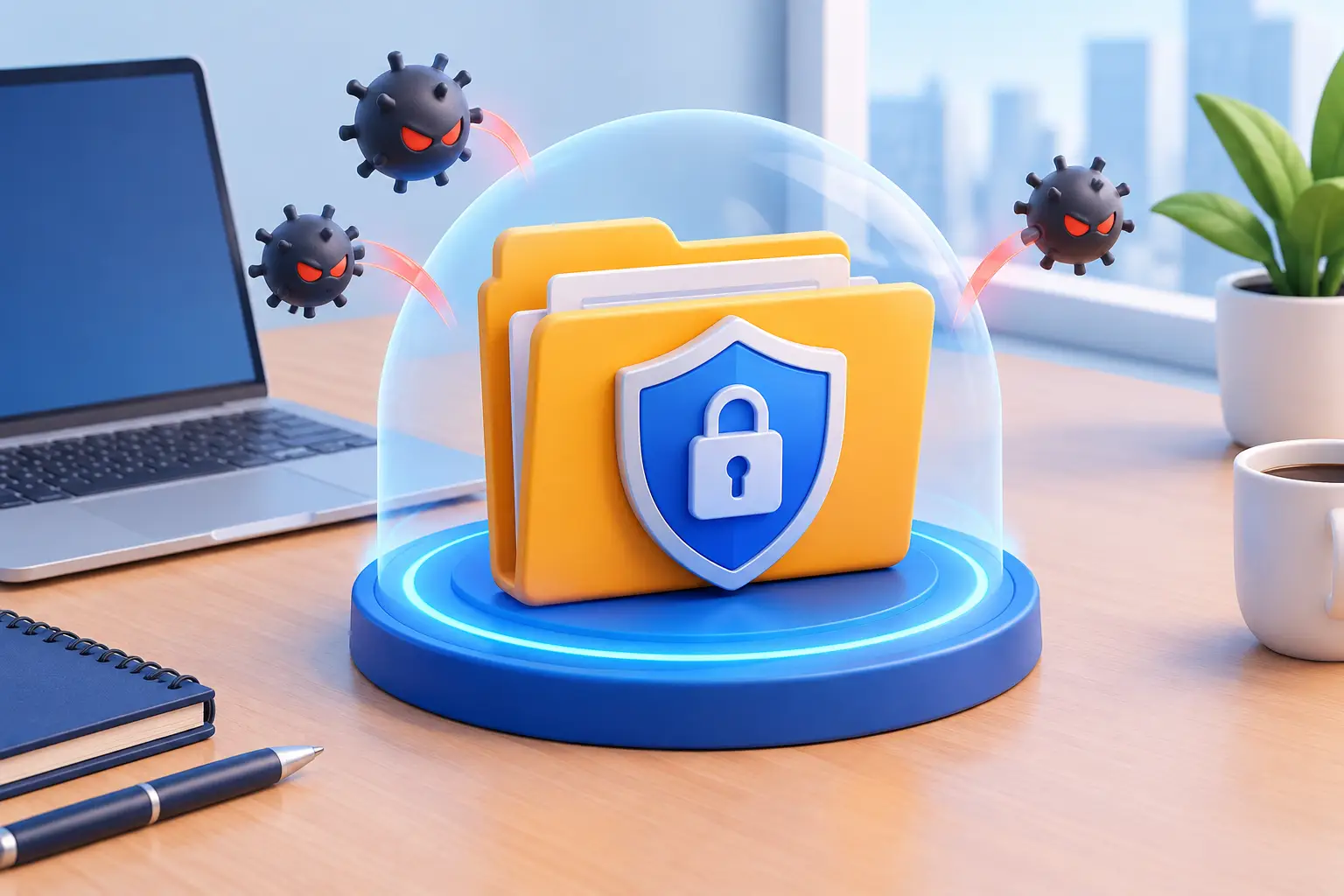
A document can look fine at 4:55 p.m., then refuse to open when you need it most. Whether it is a family photo library, a school assignment, an accounting file, or a business spreadsheet, the best time to protect files from corruption is before an error message appears. A few practical habits can prevent many common failures and make recovery far less stressful when something does go wrong.
What file corruption actually means
A corrupted file contains data that has been changed, lost, or written incorrectly. Sometimes the damage is limited to one document. Other times, a failing drive, sudden power loss, malware infection, or software issue affects a whole folder or system.
You may see messages saying a file format is invalid, the file cannot be opened, or the document has unreadable content. Photos may show gray blocks or only load partway. A video may freeze at the same point every time. These are warning signs, but they do not always mean the file is permanently gone.
The first rule is simple: do not keep opening, editing, saving, or copying a file that appears damaged. Each change can make professional recovery more difficult. Make a copy of the affected file if possible, then work from that copy while you investigate.
Why files become corrupted
File corruption is often blamed on bad luck, but most cases have a clear cause. A computer that loses power while saving can leave a file only partially written. The same thing can happen when a laptop battery dies, a USB drive is removed too early, or an application crashes during a save.
Failing storage is another major cause. Traditional hard drives wear down over time, while solid-state drives can also develop errors or reach the end of their usable life. A drive may seem normal until it begins producing corrupted documents, slow file access, unexplained freezes, or repeated requests to repair the disk.
Malware, unstable software, outdated drivers, and problems with sync services can also damage files. For small businesses, network interruptions and permissions issues add another layer of risk. When several people work in the same file, especially across cloud storage or a shared server, conflicting versions can overwrite good work.
Protect files from corruption with a real backup plan
A backup is not just copying important files to another folder on the same computer. If the computer fails, gets infected, or is stolen, that second folder goes with it. Good backups are separate from the device and tested often enough that you know they can actually be restored.
For most households and small offices, the 3-2-1 approach is a practical starting point: keep three copies of important data, on two different types of storage, with one copy stored off-site. That could mean the original file on your computer, a backup on an external drive, and another encrypted copy in a reputable cloud backup service.
Cloud sync is useful, but it is not always a complete backup. Services that sync files across devices can quickly sync deletions, damaged files, or ransomware-encrypted versions too. Version history may help, but retention periods vary. Check how long older versions are available and whether you can restore an entire folder after an accident.
For business data, set a backup schedule based on how much work you can afford to lose. A company that updates customer records all day may need frequent backups. A home computer used mainly for photos and documents may be fine with a daily automatic backup. The right schedule depends on the cost of downtime, not just the size of the files.
Test restores, not just backup notifications
A green check mark does not prove your backup is usable. At least once every few months, restore a few files to a different location and open them. Confirm that documents, photos, databases, and application-specific files work as expected.
This step matters because backup software can be misconfigured, external drives can fail, and a backup may not include the folders you assumed it did. A quick restore test turns an assumption into a plan.
Save and close files safely
Many corruption problems start with rushed habits. Give applications a moment to finish saving before shutting down a computer or closing a laptop. If you work from a USB drive, external drive, or network share, wait for file activity to stop and use the operating system’s eject option before disconnecting it.
Autosave features are worth enabling in office applications, design software, and cloud-based tools. They reduce the amount of work lost during a crash, though they do not replace backups. For major projects, save versions intentionally. Instead of repeatedly overwriting one file, use clear names such as `Budget-2026-10-28` or `Project-Plan-v3`.
Versioned files are especially helpful when several people collaborate. They let you identify when a problem began and return to a known-good copy without guessing which attachment or shared-folder version is correct.
Keep storage healthy before it fails
Do not ignore a computer that suddenly becomes slow when opening files, freezes during copies, or asks to scan and repair a drive. Those symptoms can point to a storage problem, and continuing to use the drive may increase data loss.
Pay attention to these four warning signs:
- Files that disappear, change names, or will not open
- Frequent crashes, blue screens, or unexpected restarts
- Clicking or grinding sounds from a traditional hard drive
- Repeated disk repair messages or unusually slow file transfers
If a hard drive is making unusual mechanical noises, shut the computer down rather than repeatedly restarting it. Do not run random repair tools or try to force a backup from a drive that is actively failing. The safest next step depends on the condition of the drive and how valuable the data is.
Keep enough free space on your primary drive as well. A nearly full drive can cause poor performance and make updates, temporary files, and application saves less reliable. There is no single perfect percentage, but leaving comfortable room for normal operation is better than running at the limit.
Updates and security are part of file protection
Operating system updates, application updates, and security patches are not just about new features. They correct bugs that can cause crashes, compatibility problems, and security weaknesses. Delaying updates indefinitely can leave your computer exposed to ransomware and other threats designed to encrypt or destroy files.
That said, updates should be handled carefully in a business environment. Servers, line-of-business applications, and specialized hardware may need compatibility checks before major changes. Schedule maintenance during lower-impact hours and confirm backups are current first.
Use reputable security software, strong unique passwords, and multi-factor authentication where available. Be cautious with unexpected email attachments and pop-up warnings that demand immediate action. Ransomware often starts with one convincing click, then spreads through local files, shared folders, and connected backup drives.
Be careful with shared files and removable media
A shared document can become damaged when two people save conflicting changes at once. Use collaboration tools that show who is editing, avoid opening the same local file from multiple workstations, and establish a clear process for file ownership when a project is sensitive or complex.
Removable media deserves the same care. USB flash drives are convenient for transfer, not ideal as the only location for important work. They are easy to misplace, can be unplugged mid-write, and may fail without much warning. Copy files to a reliable computer or managed storage location as soon as possible.
For a small office, shared storage should have clear permissions, monitored backups, and enough capacity for growth. A folder that everyone can edit without limits may feel convenient until an accidental deletion or overwritten file affects the whole team.
When a file will not open
Start calmly. Confirm whether the problem affects one file, one folder, or multiple locations. Try opening a copy of the file on another computer with the appropriate application. Check whether a cloud service or backup contains an older version. If the file is on an external drive, avoid writing new files to that drive until you understand the issue.
Do not download untrusted “free recovery” utilities just because they promise an instant fix. Some are ineffective, some add unwanted software, and some can overwrite recoverable data. The right recovery method depends on whether the issue is a damaged document, a software conflict, malware, or a failing drive.
If your computer is showing repeated errors, your business files are inaccessible, or you suspect ransomware, getting help early can limit the damage. Don’t Panic! Computer Repair can diagnose storage, network, and workstation issues on-site or remotely, explain the options clearly, and help you choose the safest next step.
The goal is not to make technology feel fragile. It is to build a few safeguards into the way you work, so one bad save, failing drive, or accidental click does not become a disaster.