A slow computer is frustrating. A compromised network can stop an entire business. When email, payment systems, shared files, cameras, workstations, and cloud accounts all depend on the same connection, network security becomes a practical business priority, not an abstract IT concern.
For Salt Lake City businesses, the goal is not to buy every security product available. It is to reduce the chances that one bad password, suspicious email, outdated device, or exposed router turns into lost time, lost data, or a costly recovery.
What Network Security Actually Protects
Network security is the combination of settings, hardware, software, and daily habits that protects the devices and information connected to your network. That includes desktop computers, laptops, servers, Wi-Fi access points, printers, phones, tablets, cloud accounts, and the router or firewall that connects your office to the internet.
A good setup helps prevent unauthorized access, malware infections, ransomware, data theft, and interruptions to normal work. It also makes it easier to spot a problem early and contain it before every workstation is affected.
Small businesses are often targeted because attackers expect weaker passwords, older equipment, and limited IT oversight. That does not mean a small company needs enterprise-level complexity. It does mean basic protections need to be configured correctly and checked regularly.
The Risks That Cause the Most Trouble
Many security incidents do not start with a dramatic hack. They start with a rushed employee opening a fake invoice, a reused password appearing in a data breach, or a router that was installed years ago and never updated.
Phishing remains one of the most common entry points. A message may appear to come from a shipping company, bank, vendor, manager, or Microsoft 365 account. Its purpose is usually to get someone to enter a password, approve a login request, open a malicious attachment, or send money to a fraudulent account.
Ransomware is another serious concern. It can encrypt business files and shared folders, then demand payment for recovery. Even when a business has backups, restoring systems takes time. If the backup is connected to the same network and has not been protected, it may be encrypted too.
Unsecured Wi-Fi creates its own problems. A guest who only needs internet access should not be able to see accounting computers, servers, printers, or security cameras. The same principle applies to smart TVs, thermostats, cameras, and other connected equipment. These devices can be useful, but they should not have open access to critical business systems.
Start With the Firewall and Router
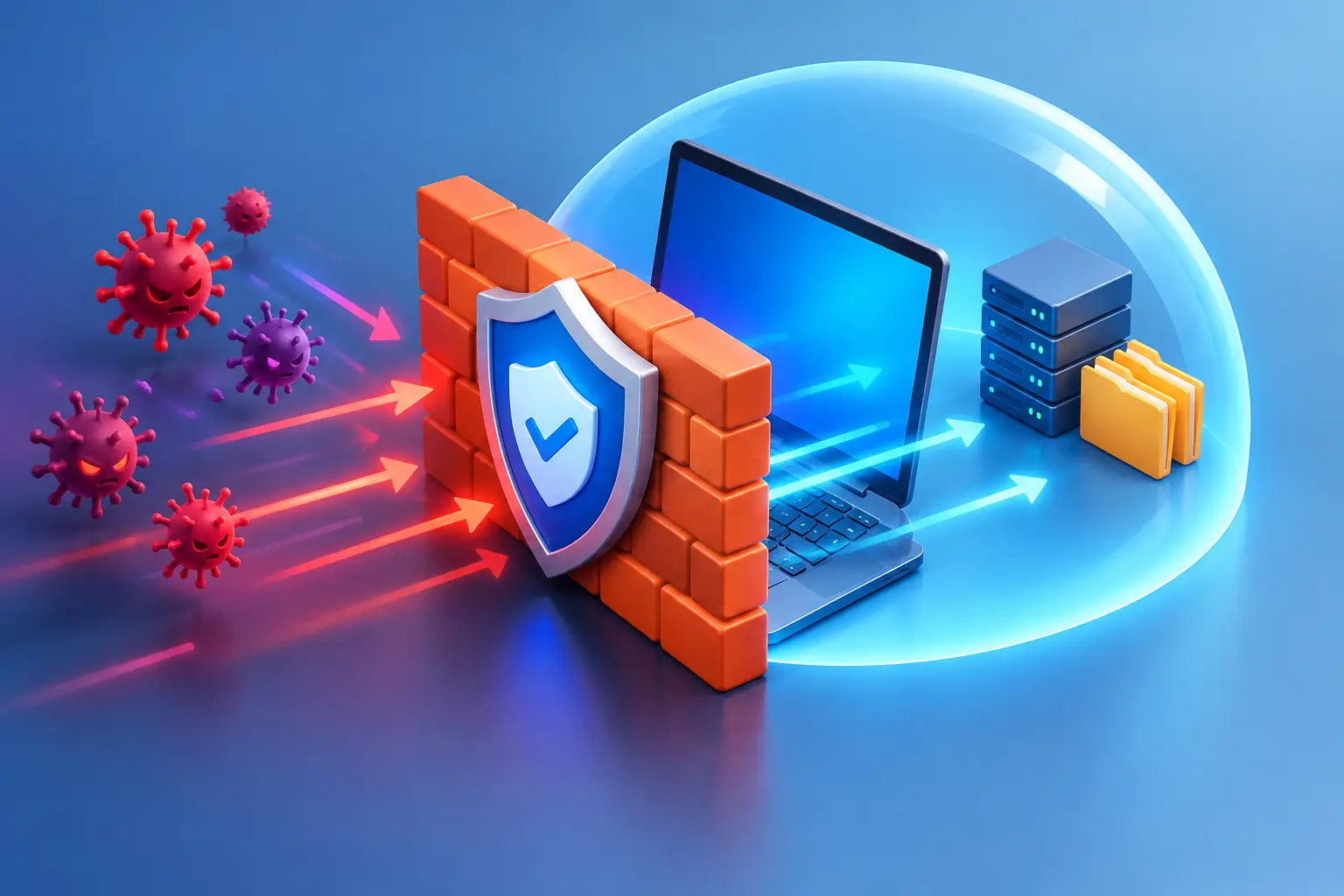
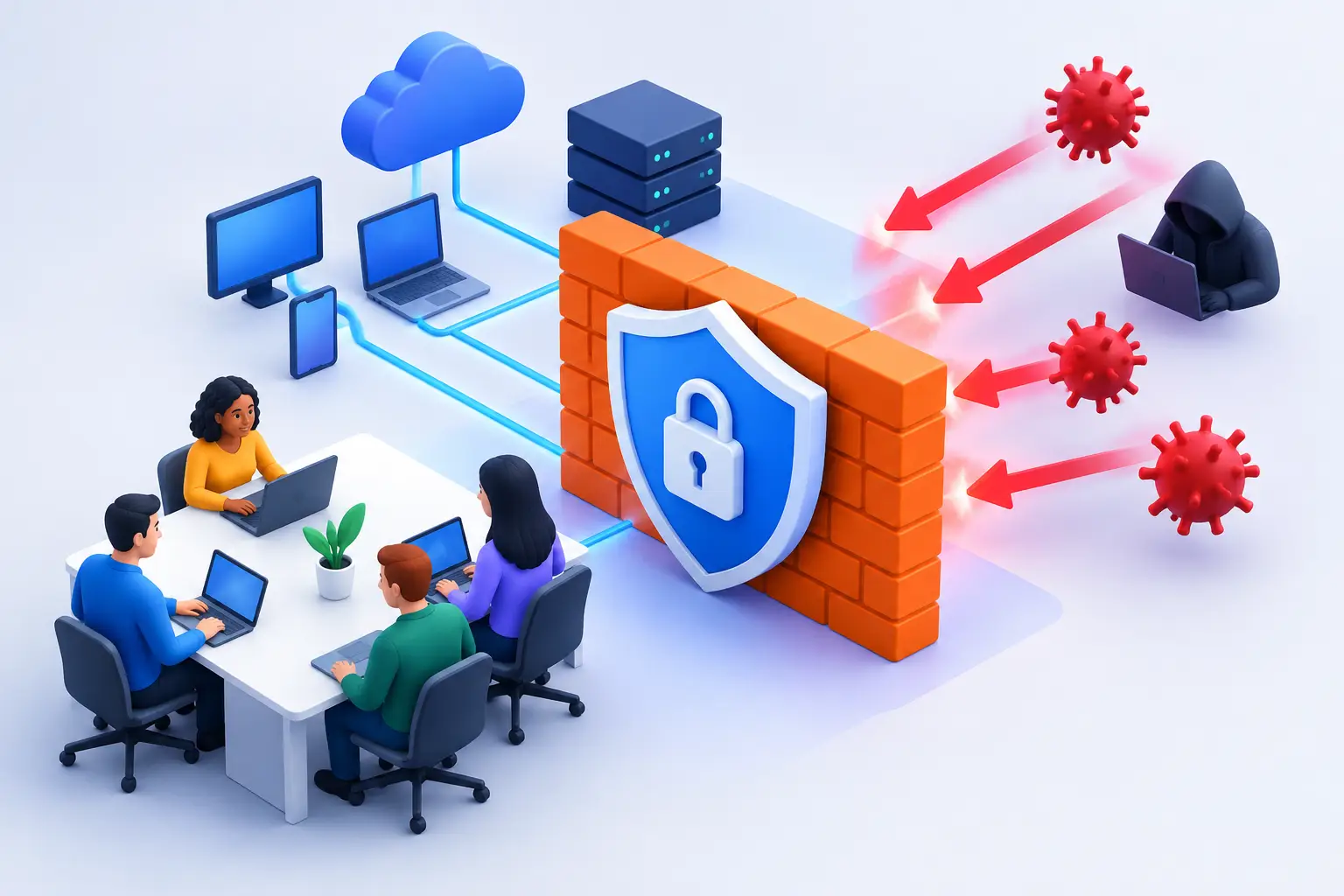
Your internet router is often the first line of defense, but consumer-grade equipment is not always enough for a growing office. A properly configured firewall can control what enters and leaves the network, block known threats, create secure remote access, and separate sensitive devices from general traffic.
The right firewall depends on the size of the business, number of employees, remote work needs, and the systems you use. A one-person office may need a simple, well-managed setup. A company with a server, point-of-sale systems, cameras, multiple departments, and remote staff needs more planning.
At a minimum, the router or firewall should use a strong administrator password that is not shared casually. Its firmware should be kept current, remote management should be disabled unless it is genuinely needed, and old settings should be reviewed after staff or vendors change. If no one knows who can log in to your network equipment, that is worth addressing before an emergency occurs.
Separate Wi-Fi for Employees, Guests, and Devices
One Wi-Fi password for everyone is convenient, but it creates unnecessary risk. A better setup separates employee devices, guest devices, and internet-connected equipment into different networks.
Employee Wi-Fi should be protected with a strong password and current encryption. Guest Wi-Fi should provide internet access without access to office computers or shared files. Cameras, smart displays, printers, and similar equipment may need their own network segment, especially if they cannot receive regular security updates.
This separation limits how far a problem can spread. If a guest device is infected or an older smart device is compromised, it should not have a direct path to your server or workstations.
Protect Accounts Before They Become an Entry Point
A secure office network can still be bypassed through a stolen email password. Cloud services, email, banking portals, file-sharing systems, and remote-access tools all need account protection.
Use a unique password for every account, especially email and financial services. Password managers make this much easier because employees do not need to memorize dozens of complicated passwords. They can generate and store long, unique credentials instead of reusing one familiar password across multiple sites.
Multi-factor authentication should be enabled wherever available. It adds a second check, such as an authenticator app approval or security code, before a login is accepted. It is not perfect, but it can stop many account takeovers caused by stolen passwords.
Be cautious with text-message codes when more secure options are available. Authenticator apps or hardware security keys are generally stronger choices. For businesses, administrator accounts deserve extra attention because one compromised admin account can affect everyone else.
Keep Computers and Software Updated
Updates can feel disruptive, particularly when an office is busy. Delaying them for months creates a larger risk. Software updates often fix known security flaws that attackers already understand how to exploit.
Set Windows, macOS, browsers, office software, antivirus tools, and business applications to update regularly. Restart devices when updates require it. A computer that stays on for weeks without rebooting may miss important changes.
Older operating systems deserve a clear plan. If a computer can no longer receive security updates, it should be upgraded, replaced, or removed from sensitive work. Keeping an outdated machine connected to the same network as current systems can expose the entire office.
Back Up What Keeps the Business Running
Backups are one of the most practical forms of network security. They protect against ransomware, hardware failure, accidental deletion, theft, and natural damage. The key is having backups that actually restore when needed.
A sensible backup plan keeps multiple copies of important data, stores one copy away from the primary office, and protects at least one backup from routine network access. Cloud backup can be useful, but it should be configured for your actual files and retention needs. A sync service is not always a backup. If a file is deleted or encrypted, that change may sync everywhere.
Test restores periodically. Recovering a sample folder is better than discovering during an outage that the backup was incomplete, inaccessible, or too old to help. For businesses with servers or line-of-business software, test the full recovery process, not just individual documents.
Train People to Pause Before Clicking
Security tools matter, but employees are often the last checkpoint before a scam succeeds. Training does not need to be technical or intimidating. It should give people a clear process when something feels off.
Encourage staff to pause before entering passwords after following an email link, opening unexpected attachments, approving login prompts, or changing payment details for a vendor. A request that creates urgency, secrecy, or fear deserves a second look.
Create a simple reporting path. Employees should know who to contact if they clicked something suspicious, lost a device, entered a password on the wrong page, or notice strange activity. Fast reporting is far more useful than embarrassment and silence. The sooner an account can be secured or a device can be isolated, the smaller the problem may be.
Build a Plan for Remote Work and Emergencies
Remote work adds flexibility, but home networks and personal devices need clear boundaries. Employees should avoid using public Wi-Fi for sensitive work unless they have approved protection in place. Remote access to office systems should use secure, managed tools rather than exposed services or shared passwords.
It also helps to decide what happens before there is an incident. Who can shut down a compromised workstation? Who contacts the bank if a payment account is affected? Where are backup credentials stored? Which vendor supports the firewall, server, email, and line-of-business software?
A short written response plan can save hours of confusion. It should include key contacts, account recovery procedures, a device inventory, and a clear rule that suspected infected devices are disconnected from the network right away, not kept online to finish one more task.
When It Is Time to Bring in IT Support
Some signs should not wait: repeated security warnings, unfamiliar logins, ransomware messages, unexplained password resets, a server that exposes files publicly, or Wi-Fi that employees and visitors all share. A review is also worthwhile after a staff departure, office move, major equipment upgrade, or change in remote-work arrangements.
Don’t Panic! Computer Repair can assess business networks, firewall settings, workstations, servers, and Wi-Fi configurations on-site or remotely. The goal is to identify the gaps that matter most, explain the fixes in plain language, and help you avoid downtime without making your setup harder to use.
Good network security is not about living in fear of every alert. It is about putting sensible layers in place, checking them before they fail, and knowing who to call when something does not look right.