A laptop that will not start, a spilled drink near a workstation, or a ransomware warning can turn stored files into an emergency. The cloud backup versus local backup decision determines whether recovery takes minutes, hours, or far longer – and whether your most important data is available at all.
For Salt Lake City households, remote workers, and small businesses, the best answer is rarely choosing one method and forgetting the other. It is choosing protection that matches how much data you have, how quickly you need it back, and what a day of downtime would cost.
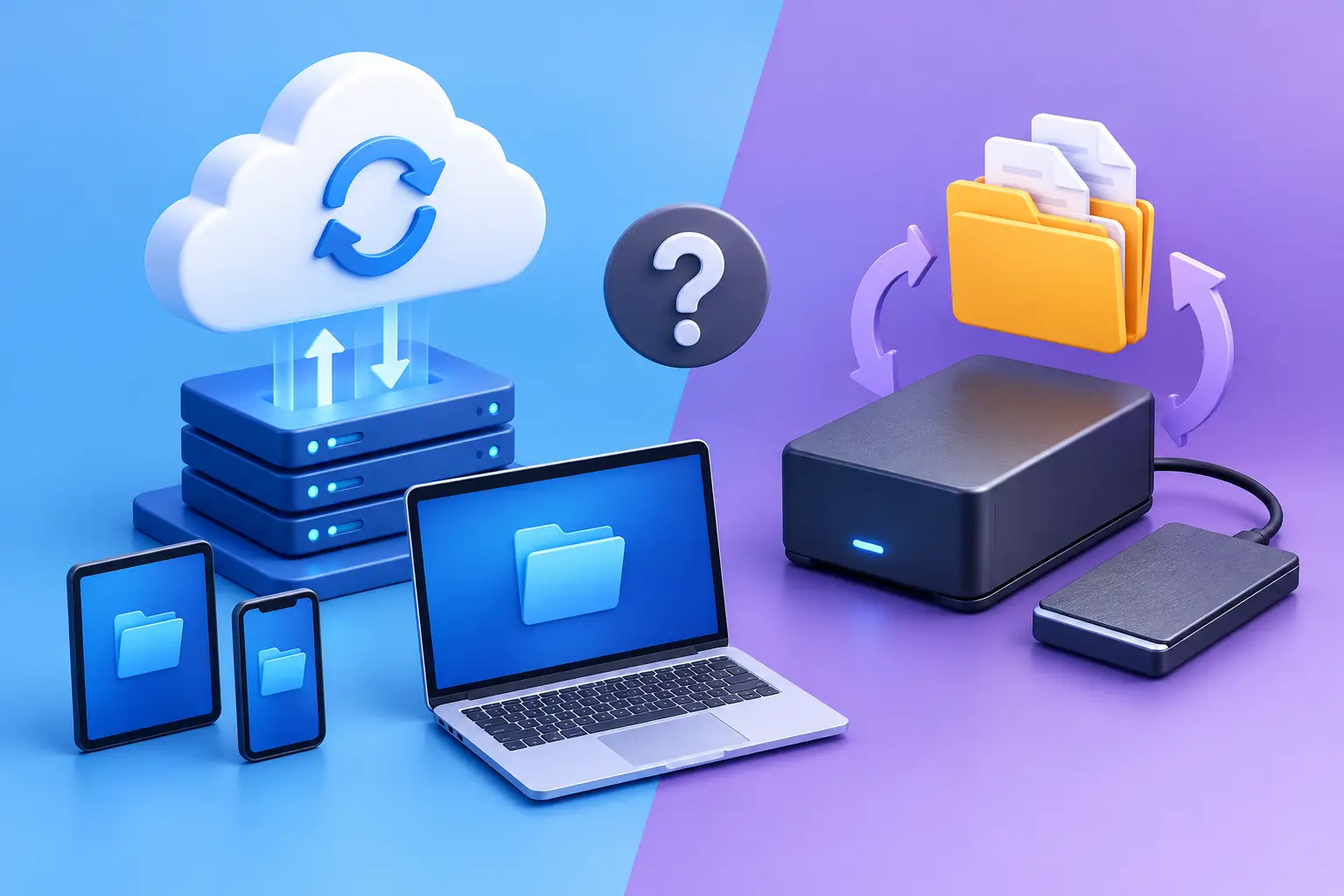
Cloud Backup Versus Local Backup: The Core Difference
A local backup stores a copy of your data on equipment you control at your location. That might be an external hard drive, a network-attached storage device, a backup server, or another computer. It is close by, which makes restoring large files fast when the hardware is working and the backup is current.
Cloud backup sends an encrypted copy of your files to remote data centers over the internet. If your office suffers a fire, theft, power event, or equipment failure, the backup is not sitting in the same building as the damaged computer. You can restore data to repaired or replacement equipment once you have an internet connection.
Neither approach is automatically safe. A local drive left connected to an infected PC can be affected by ransomware. A cloud backup account with weak passwords, no multi-factor authentication, or poorly configured retention settings can also become a problem. Backup quality comes down to setup, monitoring, and testing.
When Local Backup Is the Better Choice
Local backup shines when recovery speed matters most. A design firm, video editor, or business with large databases may need to restore hundreds of gigabytes or several terabytes. Pulling that amount of data from the internet can take a long time, even with a good connection. Restoring from a local backup device is usually much faster.
It also gives you direct control. You know where the device is, can limit access to it, and do not need to rely on monthly storage tiers for every file. For a home user with family photos and documents, an external drive can be a simple, affordable first layer of protection. For a small office, a properly configured network backup appliance can protect multiple workstations and critical shared folders.
The catch is location. If the computer and the backup drive are both stolen, flooded, or damaged in the same incident, you may lose both copies. Local storage also requires attention. Drives wear out, staff may unplug them, and a backup that has not run for six months offers false confidence rather than protection.
A local backup makes particular sense when you need rapid restoration of large files, have limited upload bandwidth, or keep data that must remain under direct physical control. It should be stored securely and checked regularly, not treated like a set-it-and-forget-it device.
Where Cloud Backup Earns Its Keep
Cloud backup protects against the problem local backup cannot solve alone: a disaster at your location. If a laptop disappears from a vehicle, a server fails, or an office cannot be accessed, a remote copy gives you a way back.
For remote workers, cloud backup is often especially practical. Their files may move between a home office, a client site, and a laptop used on the road. A backup service can run automatically in the background, reducing the chance that someone forgets to connect a drive before leaving for the weekend.
Cloud backup also scales well. A growing business can add devices and storage without buying, housing, and maintaining as much equipment. Depending on the service and plan, it may preserve previous versions of files. That matters when someone overwrites a spreadsheet, deletes a folder, or discovers a ransomware attack days later.
However, cloud recovery depends on your internet connection and the amount of data involved. Restoring a few documents is easy. Restoring an entire server or a large workstation environment can take time. You also need to understand the service agreement: how long deleted files are retained, whether there are restore fees, what is included in the backup, and how quickly support can help during a recovery.
Cloud storage is not always cloud backup. Sync services can be useful for access and collaboration, but they may copy deletions and corrupted files across every synced device. A real backup needs version history and a dependable way to restore data from a point before the problem occurred.
The Best Option for Most People: Both
For most small businesses and many households, a hybrid plan is the sensible choice. Keep a local backup for fast recovery, and keep an encrypted off-site or cloud copy for protection from a location-wide loss. This follows the basic 3-2-1 approach: maintain three copies of important data, on two different types of storage, with one copy stored off-site.
That does not mean every file requires the same treatment. A small business might back up accounting records, client documents, line-of-business software data, shared drives, server configurations, and key employee workstations. A homeowner may prioritize photos, tax documents, school files, and the folders used for remote work.
Start by identifying what cannot be recreated. Operating systems and software can usually be reinstalled. Years of family photos, customer records, locally saved email, or a database with no export may not be recoverable without a current backup.
Compare Recovery, Cost, and Risk
Before choosing a setup, ask three practical questions.
First, how fast do you need your files back? If a business cannot operate for more than a few hours without its server or shared documents, local backup and a tested recovery plan are worth the investment. If you only need occasional file recovery, cloud-only backup may be sufficient.
Second, how much data are you protecting? Large video libraries, engineering files, or full system images can make cloud uploads and restores slow. Smaller document-focused workloads are usually easier to protect in the cloud.
Third, what risks are most likely? A laptop used away from home faces loss and theft. An office server faces hardware failure, power issues, and ransomware. A home computer may face drive failure, accidental deletion, or a device that simply will not boot. Your backup should address the risks you actually face, not just the cheapest scenario.
Costs should be viewed over time. Local backup usually has higher upfront hardware costs and possible replacement costs later. Cloud backup usually has recurring monthly fees. The larger expense is often unplanned downtime, lost client information, or trying to rebuild years of files after a failure.
Backup Settings That Matter More Than the Brand Name
A backup system only helps if it captures the right information and can be restored. Whether you use cloud, local, or both, make these checks part of the setup:
- Confirm which folders, drives, user profiles, databases, and shared locations are included. Do not assume the Desktop folder is the only place important files live.
- Set a backup schedule that matches how often files change. Daily may work for many users, while busy business data may need more frequent protection.
- Enable multi-factor authentication on backup accounts and restrict administrative access to the people who need it.
- Keep multiple backup versions long enough to catch delayed ransomware or accidental deletions.
- Test a restore. Open recovered files and, for business systems, verify that applications can actually use the restored data.
For businesses, backups should also cover more than documents. Network equipment configurations, server settings, software license details, and recovery instructions can save significant time after a major failure. Store those instructions where they remain accessible if the main network is down.
Common Backup Mistakes to Avoid
The most common mistake is assuming a backup ran because the software was installed. Check status alerts and review logs. Another is backing up a drive without testing the restore process. A backup that cannot be read when needed is not a backup.
People also overlook encryption. Local drives can be lost or stolen, so sensitive data should be encrypted. Cloud accounts should use strong, unique passwords and multi-factor authentication. For a small business, employee access should be removed promptly when someone leaves.
Finally, do not keep your only local backup permanently attached to the computer it protects. Ransomware can encrypt connected drives and network shares. A properly designed backup plan uses separation, versioning, and access controls to reduce that risk.
Get Help Before a Failure Forces the Decision
If you are not sure what is being backed up, that uncertainty is worth fixing now. A technician can review your computers, shared storage, internet speed, server needs, and recovery priorities, then build a plan that is realistic for your budget and daily workflow.
Don’t Panic! Computer Repair can help Salt Lake City homes and small businesses set up, verify, and recover local and cloud backups without burying you in technical jargon. The goal is simple: when a drive fails or a device goes missing, you should know exactly where your files are and how to get back to work.