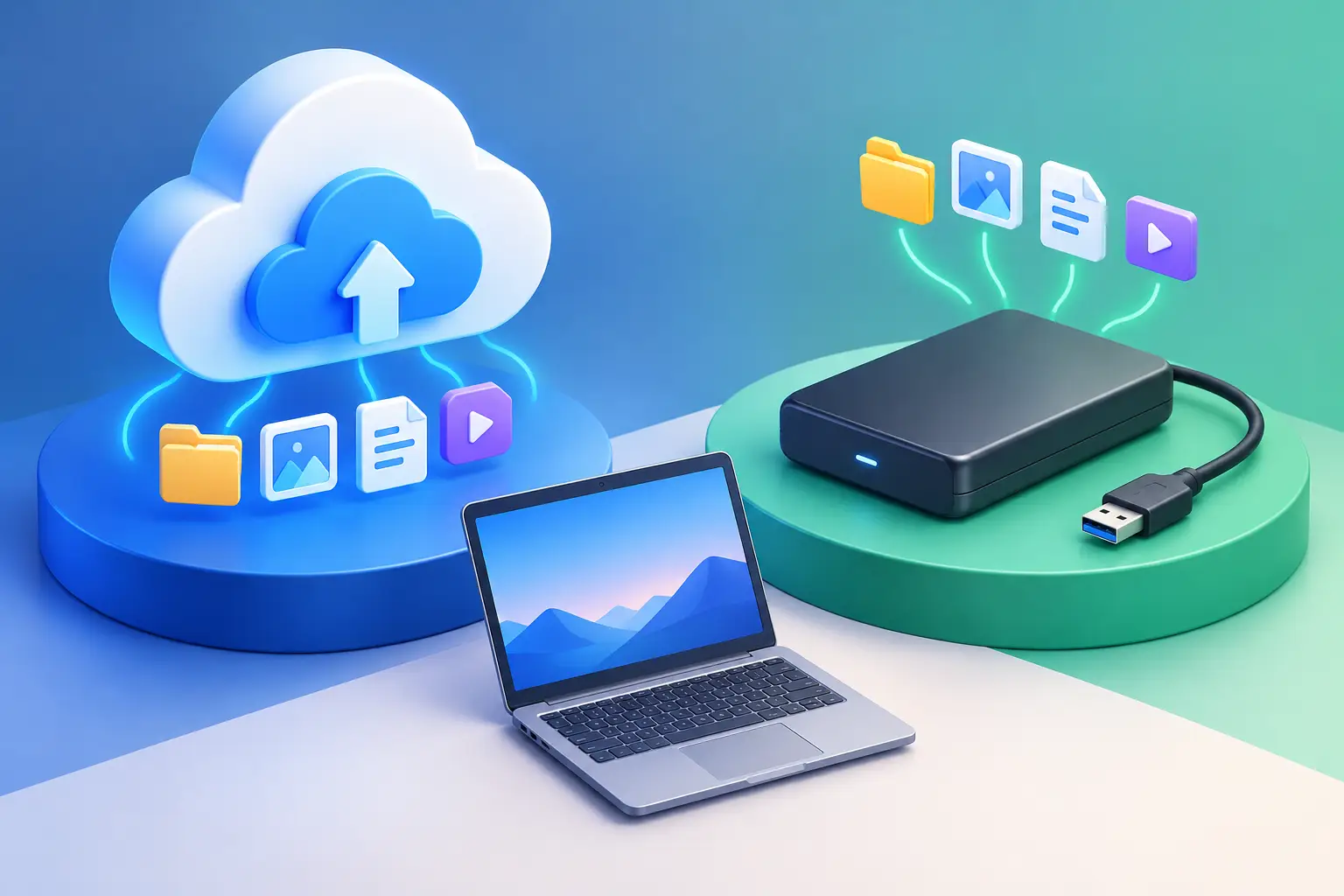
A laptop can fail without warning. So can the external drive sitting beside it. When people ask about cloud backup versus external drive, the right answer is usually not choosing one over the other. It is making sure one problem cannot take out every copy of your important files.
For a family, that might mean photos, tax records, schoolwork, and years of documents. For a Salt Lake City business, it can mean customer files, accounting data, job estimates, shared folders, and the work needed to keep payroll or operations moving. The best backup plan is the one that lets you recover quickly when something goes wrong.
Cloud Backup Versus an External Drive: The Real Difference
An external drive is a physical device that connects to your computer, usually through USB. You can copy files to it manually or set up backup software to run on a schedule. The drive stays under your control, and restoring a large amount of data can be fast because everything is local.
Cloud backup sends a copy of your data through the internet to secure off-site servers. Depending on the service, it can run continuously or at scheduled intervals. If your computer is stolen, damaged by water, or affected by a fire, your backup is not sitting in the same room.
That location difference matters more than most people realize. An external drive protects you from a failing internal drive. Cloud backup can protect you from a larger event that affects both the computer and the local backup.
Neither option is automatically perfect. An unplugged external drive that has not been updated in six months is not much help. A cloud account with no clear restore process, limited storage, or an expired payment method can create its own unpleasant surprise. Backup only works when it is current, accessible, and tested.
When an External Drive Makes Sense
External drives are practical because they are straightforward. Buy the drive, connect it, and back up your files. There is usually no recurring monthly cost beyond the hardware purchase, which can make this option appealing for a home computer with a manageable amount of data.
They are also useful when you need to restore a lot of information quickly. Downloading several terabytes through a home internet connection may take days. Copying that same amount from a healthy local external drive can be much faster. This is especially helpful for video projects, large photo libraries, and workstation files.
An external drive also works well for a second backup copy that stays disconnected when it is not in use. That last part is key. If ransomware encrypts your computer and the connected external drive, both copies may be affected. Disconnecting the drive after a completed backup reduces that risk.
The downside is maintenance. Someone has to make sure backups run, check that the drive has enough space, and replace it before it fails. External drives do not last forever. They can be dropped, lost, corrupted, or damaged by power issues. Keeping the only backup drive next to the computer also leaves both devices exposed to theft, fire, and water damage.
When Cloud Backup Is the Better Choice
Cloud backup is usually the safer choice for people who want automatic protection without remembering to connect a drive. Once it is configured correctly, it can back up files in the background while you work. That makes it a strong fit for remote workers, busy households, and small businesses where nobody has time to babysit backups.
Off-site storage is cloud backup’s biggest advantage. If a laptop is left in a car and stolen, or an office has a flood or fire, the data can still be available from another device. That protection is difficult to match with a single external drive.
Cloud backup can also help after ransomware, but the details matter. A quality backup plan needs version history or file retention. Without it, an encrypted or damaged file might synchronize to the backup and replace the healthy version. Before choosing a provider, confirm how long previous versions are kept and how a full restore works.
The trade-off is speed and cost. Initial backups can take a long time, especially with slower upload speeds. Restoring a full computer over the internet can also be slow. Cloud backup normally involves an ongoing subscription, and storage limits or extra fees may apply for larger data sets.
Cloud storage is not always the same thing as cloud backup. Services that sync folders across devices are useful for access and collaboration, but syncing alone can copy deletions and corrupted files everywhere. A true backup system is designed to preserve recoverable versions over time.
The Best Answer for Most People: Use Both
For most homes and small businesses, cloud backup versus external drive is not an either-or decision. A local external drive and an off-site cloud backup cover different types of failure.
A practical approach follows the familiar 3-2-1 idea: keep at least three copies of important data, on two different types of storage, with one copy stored off-site. Your computer is one copy. An external drive is another. Cloud backup provides the off-site copy.
This setup gives you options. If you accidentally delete a folder, the local backup may get it back quickly. If your computer and office equipment are damaged, the cloud copy gives you a path forward. If one backup system has a problem, you are not relying on a single device or a single account.
For a small business, backups should include more than documents. Review where your accounting program stores data, whether email is retained, how shared files are protected, and whether servers or network-attached storage need separate backup coverage. A cloud service installed on employee laptops may not protect the files stored on a server.
How to Choose the Right Setup
Start by identifying what would hurt to lose. Photos and personal documents matter, but so do browser bookmarks, email archives, financial files, application settings, and any files stored outside the usual Documents folder. Businesses should identify critical systems, not just visible folders.
Next, consider how quickly you would need your files back. If a remote worker needs to be productive again the same day, a local backup can shorten recovery time. If your priority is protecting files from a home or office disaster, off-site cloud backup deserves a central role. Many people need both priorities covered.
Also consider your internet connection. Upload speed, not download speed, controls how long the first cloud backup will take. A large initial backup may need to run overnight for several days. That is normal, but it should be planned before an emergency happens.
Security matters as well. Use a strong, unique password for any cloud backup account and turn on multi-factor authentication when available. Encrypt external drives that contain sensitive data, particularly if they leave your home or office. Keep recovery keys and account credentials somewhere secure that you can access if the computer itself is unavailable.
Finally, test the backup. Restore a few files to a different folder and confirm they open correctly. Check dates, file versions, and whether the files you expected are actually included. A backup report that says “successful” does not guarantee every important folder was selected.
Common Backup Mistakes to Avoid
The most common mistake is believing a backup exists because a drive is plugged in. Check the date of the last successful backup and make sure it includes the files you use now. Another common problem is having one external drive that never leaves the house or office.
Do not assume a new computer solves a backup problem. New hardware can get you working again, but it cannot recreate irreplaceable files that were never copied elsewhere. Likewise, do not wait until a drive starts clicking, freezing, or disappearing before arranging a backup. Those are warning signs that time may be short.
For businesses, avoid giving every employee a different informal process. A consistent backup plan is easier to monitor and restore. It also reduces the chance that important work is scattered across desktops, personal devices, and accounts no one else can access.
If you are unsure what is being protected, Don’t Panic! Computer Repair can help review your computer, external drive, cloud setup, and recovery options before a failure turns into data loss. The goal is not to make backup complicated. It is to make the next computer problem less stressful.
The best time to check your backup is while every file is still where it belongs. Pick a backup method, make a second copy in a different place, and test one restore this week.