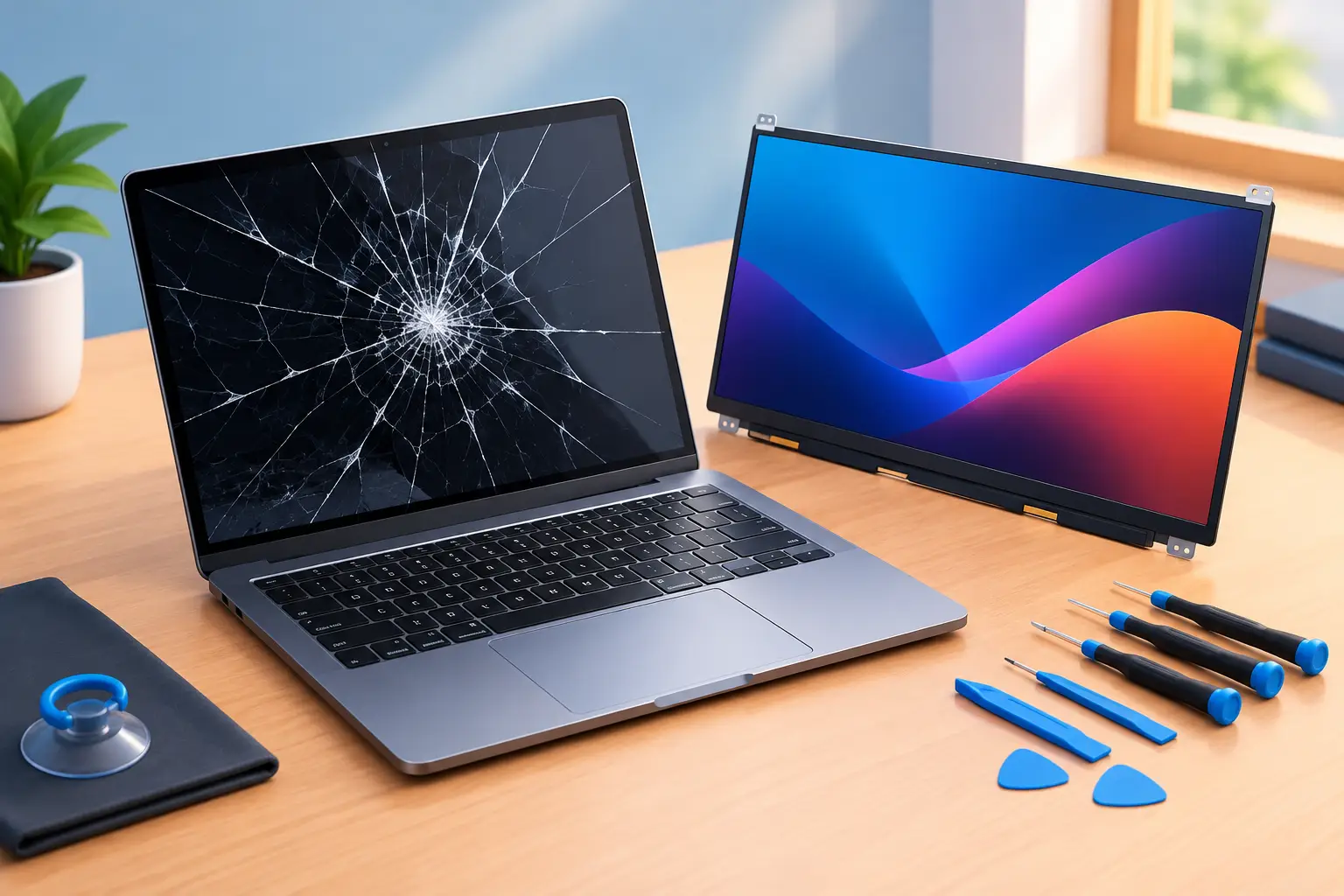
A laptop with a cracked, black, flickering, or line-filled display can make a normal workday stop fast. The good news is that a damaged screen does not automatically mean the laptop is finished. This laptop screen replacement guide explains how to identify the problem, what a proper repair involves, and when calling a technician is the smarter move.
First, Confirm That the Screen Is the Problem
A blank display can look like a broken screen, but the cause may be the battery, graphics hardware, motherboard, display cable, or even a simple brightness setting. Before ordering parts or assuming the worst, connect the laptop to an external monitor or TV if one is available.
If the external display works normally while the laptop panel stays black, distorted, or dim, the internal screen assembly is the likely issue. If both displays have the same problem, the repair may involve something deeper than the panel itself.
Physical damage is usually easier to identify. Spiderweb cracks, ink-like dark spots, colored vertical lines, bright white areas, or a display that only works when the lid is held at a certain angle point toward the screen or its cable. A panel can also fail without a visible crack, especially after a drop, pressure in a backpack, moisture exposure, or years of regular use.
Common Signs You Need a Screen Replacement
Not every display problem requires a new panel. A few dead pixels may be annoying but are often not worth replacing a screen over. On the other hand, spreading dark blotches, broken glass, persistent lines, or a completely black internal display usually justify a closer look.
Flickering deserves careful diagnosis. It can come from a failing LCD or LED panel, but it may also be caused by a loose display cable near the hinge. If the picture changes when you open or close the lid, the cable or hinge area becomes more suspect. Replacing a cable is sometimes less expensive than replacing the panel, but the laptop still needs to be opened and inspected correctly.
Touchscreen laptops add another layer. Depending on the model, the touch digitizer and display panel may be separate parts or one bonded assembly. A cracked outer glass layer may affect touch response even when the picture still looks normal. For these systems, the right repair often depends on the exact model number, not just the screen size.
What a Laptop Screen Replacement Actually Requires
A proper screen replacement is more than fitting any panel that appears to be the same size. Laptop displays vary by resolution, connector type, connector location, refresh rate, mounting style, brightness, touch capability, and panel technology. A 15.6-inch screen from one laptop may physically fit another model while still being incompatible.
The technician first identifies the laptop’s complete model number and confirms the original display specifications. Then the bezel, battery connection, and panel are removed carefully. The new screen is installed, connected, and tested before the laptop is reassembled.
Modern laptops can be delicate around the display. Thin bezels use clips and adhesive that are easy to crack. Hinge damage can pull on the display cable. On some newer models, the screen assembly is so integrated that replacing the full lid assembly is more practical than replacing only the LCD panel. Apple laptops and many premium ultrabooks can be especially particular about parts and procedures.
This is why a low-cost screen found online is not always a bargain. An incorrect panel can arrive with the wrong connector, lower brightness, poor color quality, no touch support, or limited compatibility. The savings disappear if the part has to be replaced a second time.
Laptop Screen Replacement Guide: Repair or Replace the Laptop?
The decision usually comes down to the laptop’s age, overall condition, and the value of the data and work stored on it. A screen replacement often makes sense when the computer is otherwise reliable, starts normally, has a good battery, and meets your current performance needs.
For a newer laptop, replacing a damaged display is commonly far less expensive than buying a comparable new system. It also avoids the time involved in moving files, reinstalling programs, signing back into accounts, and setting up a replacement computer.
Replacement may be the better answer if the laptop also has a weak battery, broken hinges, charging problems, failing storage, or performance that no longer supports your work. A budget laptop that is several years old may not justify an expensive full display assembly. A business laptop with a solid keyboard, dependable internals, and a damaged screen often does.
There is also a middle ground. If you need access to files immediately and an external monitor works, you may be able to keep working while deciding on the repair. That is a temporary workaround, not a great long-term solution for a laptop meant to travel.
What Affects Screen Replacement Cost?
There is no responsible flat price for every laptop screen. The final cost depends on the specific panel, labor required, and whether damage extends beyond the display itself. Standard non-touch panels are generally simpler and less expensive than high-resolution, touchscreen, OLED, gaming, or Apple display assemblies.
The biggest cost factors are typically the screen type, whether a full lid assembly is needed, availability of compatible parts, and hidden damage around the hinges or display cable. A laptop that was dropped may have more than one issue. Clear diagnostics before repair help prevent surprises.
For Salt Lake City customers, an on-site or mobile technician can also save the hassle of packing up a damaged laptop, waiting at a counter, and making another trip to pick it up. Don’t Panic! Computer Repair provides free diagnostics and transparent hourly billing at $80 per hour, so you can understand the issue and the repair path before moving forward.
Can You Replace a Laptop Screen Yourself?
Some older laptops are reasonably DIY-friendly, especially models with removable batteries, thicker plastic bezels, and standard non-touch panels. If you have the exact compatible part, the right small tools, and experience working around fragile electronics, a basic screen swap may be manageable.
The risk is not just breaking the old screen. It is easy to damage the new panel during installation, tear the display cable, crack the bezel, strip hinge screws, or reconnect the battery improperly. Screens should never be handled with excessive pressure on the front surface. A repair can also affect warranty coverage on newer devices.
DIY repair makes the most sense when the laptop has low replacement value, the repair instructions are clear for that exact model, and you are comfortable accepting the risk. Professional help is usually the better choice for touchscreens, MacBooks, laptops with glued-in displays, business systems, and devices that contain important data.
Protect Your Data Before Any Hardware Repair
A screen problem does not usually erase files, but backups are still worth doing before any repair. If the laptop can connect to an external monitor, copy important files to a backup drive or cloud account. For business users, make sure critical documents, accounting files, and local application data are protected before work begins.
If the laptop will not display anything externally or will not boot, do not assume the data is gone. The storage drive may still be healthy and accessible. A technician can determine whether the problem is isolated to the screen or whether a separate issue is preventing startup.
Get the Right Diagnosis Before Ordering Parts
A broken-looking display is stressful, especially when you need your laptop for school, remote work, or a busy business day. Start by checking an external display, noting any physical damage, and finding the laptop’s full model number. Those details make diagnosis faster and prevent the wrong part from being ordered.
When the screen is the issue, a targeted repair can get a good laptop back in service without the cost and disruption of replacing the whole machine. A clear diagnosis and an accurate estimate are the best next steps when your display stops cooperating.