A workstation should make your workday easier, not create a new round of technical problems. This custom workstation buying guide helps you choose a computer around the programs, files, and deadlines that actually matter to you – without paying for high-end parts that will sit idle.
The right build for a remote accountant is very different from the right build for a video editor, architect, engineer, or small business office. Start with the workload, then match the hardware to it. That approach keeps the budget under control and leaves room for the upgrades you may need later.
Custom Workstation Buying Guide: Start With Your Work
Before comparing processors or graphics cards, write down the software you use every week. Include the programs that run at the same time. A browser with 30 tabs, Microsoft Teams, cloud storage syncing, and a large spreadsheet can strain a basic computer even if none of those tasks sounds demanding on its own.
For office work, bookkeeping, web-based business tools, and remote access, reliability, fast storage, and enough memory matter more than an expensive graphics card. For photo editing, CAD, 3D modeling, engineering, video production, and data analysis, the processor, graphics card, memory, and storage configuration need to be selected more carefully.
Also consider how long you expect to keep the workstation. A system purchased for three to five years should have some room to grow. That may mean choosing a motherboard with open memory slots, a power supply that can support a future graphics upgrade, or a case with room for additional drives.
Choose the Processor Based on the Programs You Run
The CPU is the main processor that handles much of the everyday work inside your workstation. More cores can help with tasks such as video rendering, code compilation, 3D rendering, and running several virtual machines. But more cores are not always better if your main software depends on fast performance from one or a few cores.
For general business use, a current midrange processor is usually the smart choice. It handles office applications, remote meetings, multiple displays, and normal multitasking without pushing the budget into places that will not improve your day.
Creative professionals and technical users may benefit from a higher-core-count CPU, especially when time-consuming renders or exports are part of the job. Still, check the recommendations for your specific software. Some applications benefit far more from a capable graphics card or additional memory than from the most expensive processor available.
Cooling matters here, too. A workstation under sustained load produces heat. A properly sized air cooler or liquid cooler helps the CPU maintain performance and reduces fan noise. Quiet operation is worth planning for when the computer will sit next to you all day.
Memory: Buy Enough for the Real Workload
Memory, also called RAM, is where active programs and open files work while the computer is running. When there is not enough of it, the system starts leaning heavily on the storage drive. That is when a workstation can feel slow, freeze during multitasking, or struggle with large files.
For many office and remote-work setups, 16GB is a reasonable starting point. A workstation used for larger spreadsheets, professional photo work, multiple monitors, heavier multitasking, or business applications is often better with 32GB. Video editing, 3D projects, virtual machines, large databases, and complex engineering files may call for 64GB or more.
Do not buy memory simply because a product page uses big numbers. Buy it because your current workload needs it or because you have a clear plan for growth. If you regularly close programs just to open another one, more memory may be one of the most noticeable upgrades you can make.
Graphics Cards Are Not Just for Gaming
A dedicated graphics card, or GPU, can be essential for certain workstation tasks. Video editing applications can use it to accelerate effects and exports. CAD and 3D software may rely on it for smoother modeling and rendering. Multiple high-resolution monitors also place more demand on graphics hardware.
For ordinary office tasks, a built-in graphics solution may be enough. That can lower the initial cost, use less power, and keep the system simpler. For visual workloads, however, an underpowered GPU can become a frustrating bottleneck even when the rest of the computer is fast.
Compatibility matters as much as raw speed. Some professional applications are designed around specific driver support or graphics card features. Check the software vendor’s current recommendations before choosing a card. A gaming-focused GPU may be a good value for some creative work, while other environments benefit from professional-grade graphics hardware and certified drivers.
Storage Should Protect Both Speed and Data
A fast solid-state drive makes a workstation feel responsive. Windows starts faster, programs launch sooner, and large files open with less waiting. For most custom builds, an NVMe solid-state drive is the best primary drive choice.
Capacity is the second part of the decision. A 1TB drive works well for many professionals, but it fills up quickly when you keep raw video, design projects, virtual machines, or large client files on the computer. A larger primary drive, a second internal SSD, or dedicated external storage may make more sense than trying to manage space every month.
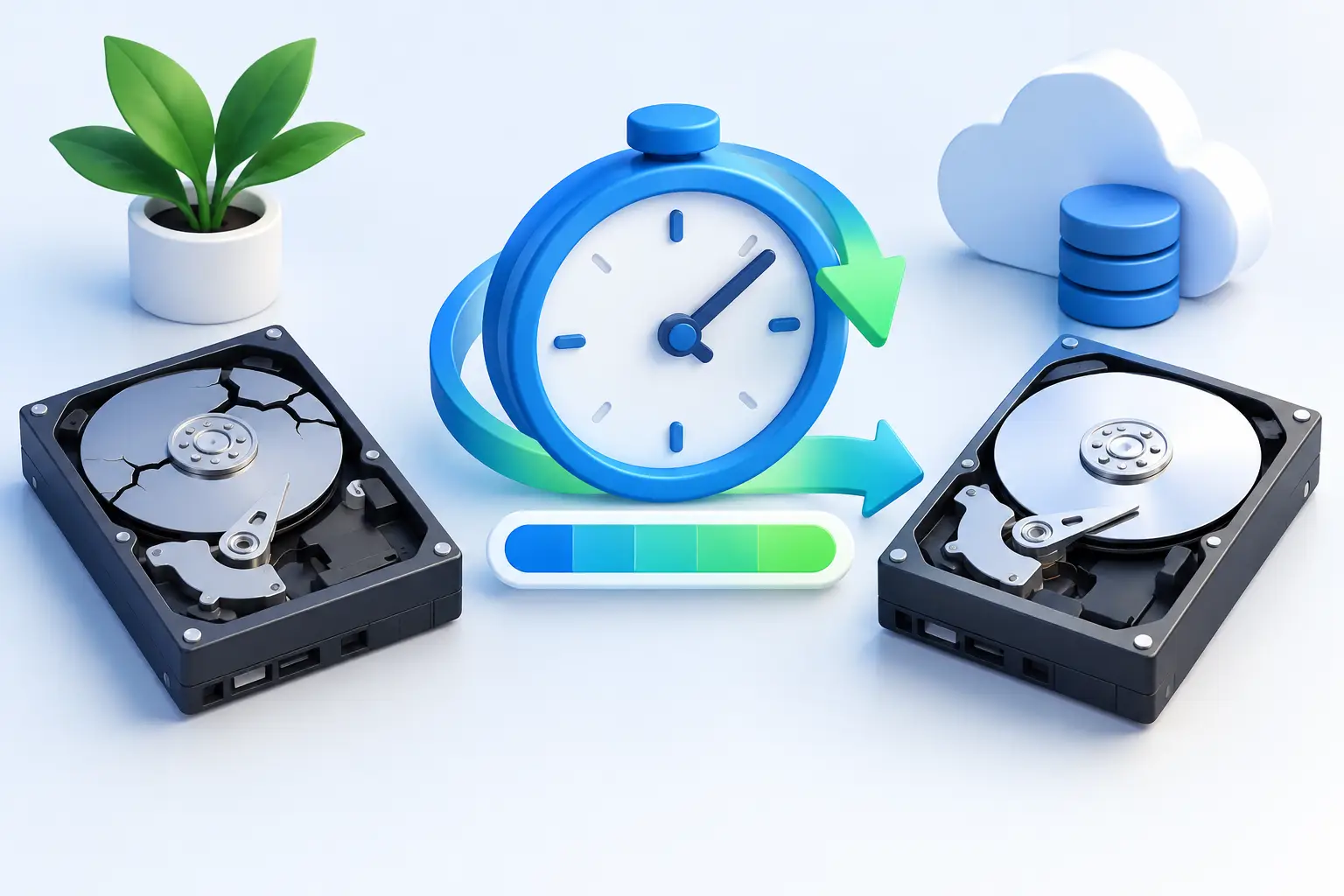
Speed is not the same as backup. A second drive inside the same computer does not protect you from theft, fire, ransomware, or a major hardware failure. Small businesses should have a backup plan that includes their important files, how often they are copied, and how quickly they can be restored. A custom workstation is only productive if the data on it is recoverable.
Plan the Desk Setup, Not Just the Computer
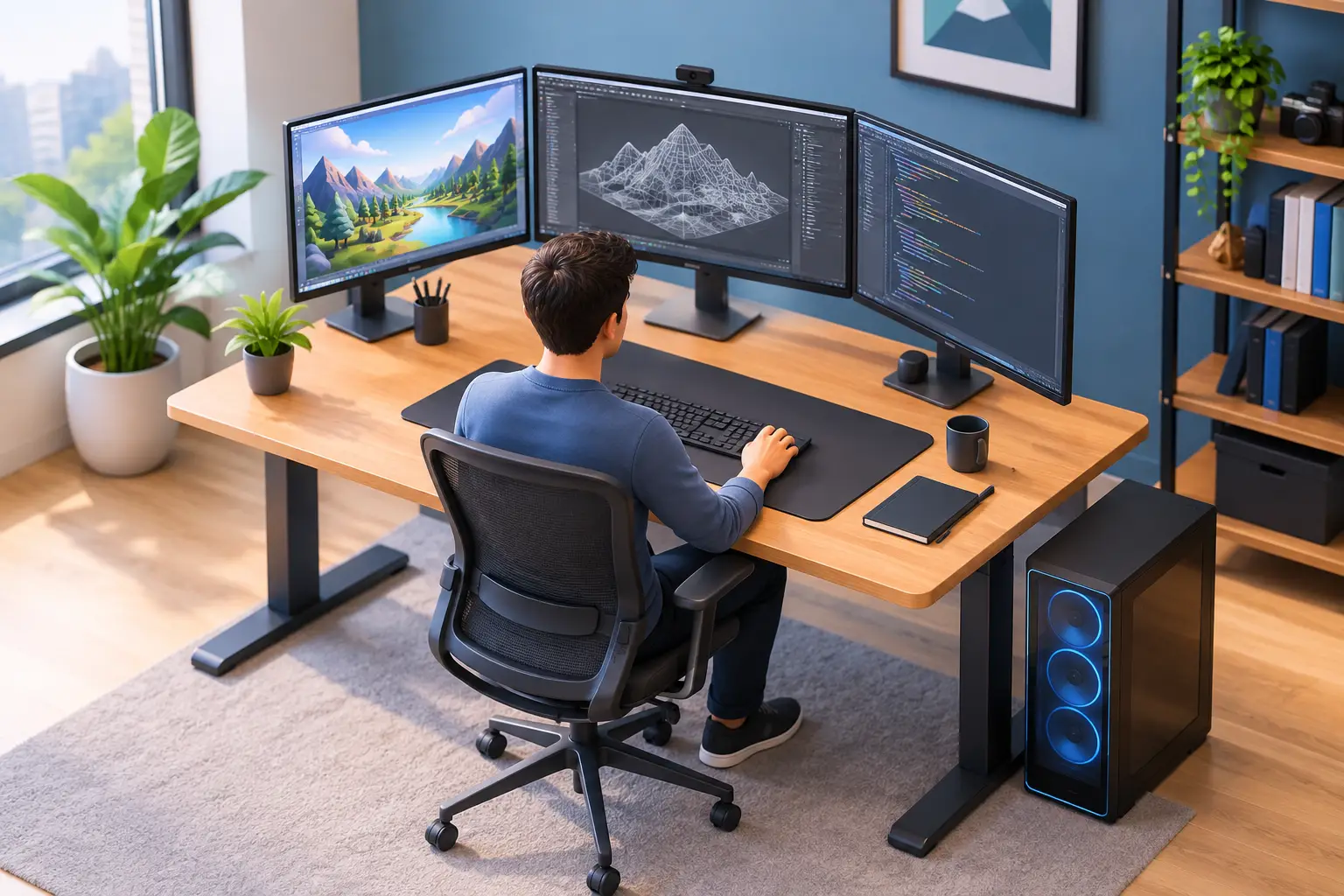
The workstation itself is one part of the purchase. Your monitors, keyboard, mouse, webcam, docking needs, network connection, and backup power can affect daily productivity just as much.
Two properly sized monitors can be a meaningful upgrade for accounting, dispatch, customer service, research, and project management. Color-critical photo and video work may require a display with better color accuracy. If you work from home or handle sensitive business information, a wired network connection and a battery backup are often worthwhile additions.
Pay attention to ports before placing an order. Count the displays, USB devices, external drives, card readers, and other equipment you need to connect. Adapters can solve some problems, but a workstation with the right ports from the beginning is cleaner and more dependable.
Set a Budget That Includes Support and Setup
The lowest purchase price is not always the lowest cost. A poorly matched workstation can lead to slow exports, software conflicts, early replacement, lost work time, and expensive emergency upgrades. At the same time, it is easy to overspend on premium hardware that your work will never use.
A practical budget separates must-haves from nice-to-haves. Put the money first toward the components that affect your actual workload: processor, memory, graphics, storage, and displays. Features such as decorative lighting, extreme overclocking, or oversized hardware may be appropriate for a specialized build, but they do not automatically make a business workstation better.
Setup should be part of the plan. That includes transferring files, installing licensed software, configuring email, connecting printers, setting up backups, applying security updates, and testing the system before it becomes your primary computer. For a business, it also means making sure the workstation works correctly with shared folders, network permissions, servers, and remote access.
When a Custom Build Makes Sense
A custom workstation is a strong choice when off-the-shelf systems do not fit the job. That includes professionals who need more memory, multiple drives, specific graphics capabilities, quiet performance, or a configuration that can be upgraded over time.
It can also make sense for a small business that wants standardized systems for several employees. Matching hardware makes future support, replacement parts, and troubleshooting easier. The trade-off is that custom hardware requires thoughtful planning. Compatibility, warranty coverage, and ongoing support should be clear before the system is built.
For Salt Lake City homes and businesses, Don’t Panic! Computer Repair can help evaluate an existing computer, recommend a practical custom build, and handle setup where the workstation will be used. That is often easier than trying to compare specifications alone and hoping every part works together.
Buy for the Workday You Want
The best workstation is not the one with the longest specification sheet. It is the one that opens your files quickly, runs your essential programs without hesitation, protects your data, and gives you room to keep working as your needs change. Start with the work you need done tomorrow, then build enough headroom for what comes next.