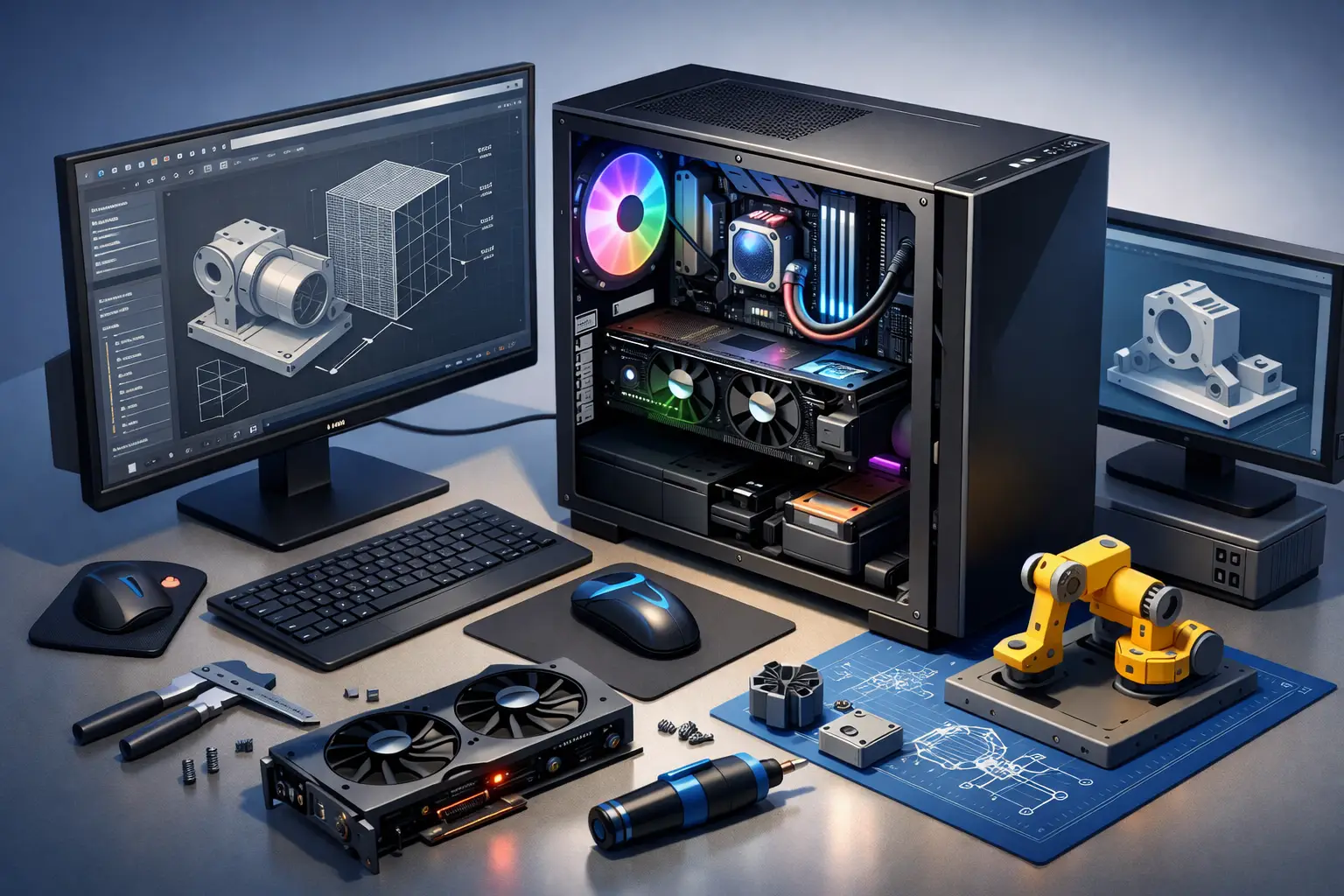
A workstation pc build for engineering should be chosen around the work that pays your bills, not around the flashiest parts on a spec sheet. A computer that feels quick in email can stall badly when opening a large assembly, running a simulation, or rendering a client presentation. The right build keeps projects moving without spending thousands on hardware your software will never use.
For engineers, architects, designers, and technical teams in Salt Lake City, the goal is simple: buy performance where it matters, leave room to grow, and avoid the compatibility problems that turn a new workstation into a time-consuming headache.
Start With Your Engineering Software
The best workstation is application-specific. AutoCAD, SolidWorks, Revit, Civil 3D, Inventor, Fusion, MATLAB, ANSYS, Solid Edge, and Adobe tools do not all use a computer in the same way.
Many CAD programs rely heavily on fast single-core CPU performance while modeling and editing. That means a processor with strong clock speeds can feel more responsive than a high-core-count processor that is slower per core. Simulation, finite element analysis, compiling, rendering, and some data-processing tasks can use many CPU cores at once. If those tasks are part of your daily workflow, more cores can save real time.
Graphics needs also vary. Basic 2D drafting usually does not need an expensive graphics card. Large 3D models, real-time visualization, GPU rendering, virtual reality, and complex viewport work may benefit substantially from a more capable GPU. Before purchasing parts, check the recommended hardware specifications for the exact version of the software your team uses. A program’s minimum requirements are only enough to launch it, not necessarily enough to work comfortably all day.
Choose the CPU for How You Actually Work
The CPU is the foundation of an engineering workstation build. For most individual CAD users, a modern midrange or upper-midrange processor with excellent single-core speed is the practical starting point. It handles drawings, assemblies, spreadsheets, browser tabs, meetings, and general office work without making the whole system feel sluggish.
Move to a higher-core-count processor when you regularly run simulations, render images or video, compile code, process point clouds, or run multiple demanding applications at the same time. There is a trade-off: the processor with the most cores is not automatically the best choice for interactive CAD work. A balanced CPU often delivers better day-to-day value.
Cooling matters here. High-performance processors generate heat under sustained loads. A quality air cooler or liquid cooler, a case with good airflow, and correctly installed fans help the processor maintain speed instead of slowing itself down to manage heat. Quiet cooling is worth considering for office environments where a constantly loud workstation becomes distracting.
Do You Need ECC Memory?
ECC memory can detect and correct certain memory errors. It is useful for mission-critical calculations, servers, scientific workloads, and businesses where data integrity is a major concern. It is not mandatory for every engineering desktop, and it requires compatible hardware. For a typical CAD workstation, spending that budget on more standard RAM, faster storage, or a better backup plan may make more sense.
Set RAM Based on Project Size, Not Guesswork
Insufficient memory is one of the most common reasons a workstation slows down. When RAM fills up, Windows starts leaning on the storage drive as temporary memory. Even a fast SSD is much slower than RAM, and the result is lag, freezing, and long wait times when switching between applications.
For light drafting and office work, 16GB may run acceptably, but it leaves little breathing room for a professional workstation. In most engineering builds, 32GB is the sensible baseline. It supports larger drawings, multitasking, video calls, browser-based project tools, and typical 3D work.
Choose 64GB when you handle large assemblies, Revit models, point-cloud files, detailed simulations, several virtual machines, or heavy rendering. Teams working with unusually large datasets may need 128GB or more. If the budget is tight, select a motherboard with open memory slots so the system can be upgraded later instead of replaced early.
Pick a GPU That Matches the Workload
A graphics card affects how smoothly 3D models rotate, zoom, shade, and display. It can also accelerate specific rendering and computing workloads. The right choice depends on whether your software benefits from consumer graphics cards, professional workstation cards, or simply a modest GPU with enough display outputs.
Professional GPUs are built with certified drivers for many CAD and engineering applications. Certification can matter in a business environment where stability, vendor support, and predictable behavior are more valuable than benchmark scores. They are often a smart fit for SolidWorks, CAD-heavy teams, and systems where downtime has a high cost.
Consumer GPUs can offer excellent performance per dollar for GPU rendering, visualization, general 3D work, and some engineering applications. They are not automatically a bad choice. The question is whether your software vendor certifies and supports the card you choose. If an application crashes during a deadline, saving a few hundred dollars on the GPU can stop looking like a bargain.
Do not overlook video memory, also called VRAM. Larger models, high-resolution displays, rendering, and visualization can require more VRAM than basic drafting. A card may have a fast processor but still struggle when it runs out of graphics memory.
Storage Should Protect Both Speed and Projects
An NVMe solid-state drive should be the primary drive for Windows, engineering software, and active project files. It improves startup times, file loading, and general responsiveness. A 1TB drive is a reasonable floor for many professionals, while 2TB gives more room for active project folders, reference files, local backups, and software.
For larger file archives, add a second SSD or a higher-capacity hard drive based on budget and access needs. Keep in mind that storage capacity is not a backup. A second drive inside the same computer can fail, be stolen, or be damaged along with the primary drive. Important engineering work should also be backed up to a separate local device, a server, or an approved business backup service.
If your team shares large files, network speed becomes part of workstation performance. A system connected through reliable wired Ethernet can save time compared with transferring major project files over weak Wi-Fi.
Do Not Cheap Out on the Power Supply, Case, or Motherboard
These parts are less exciting than a CPU or GPU, but they determine whether the build remains stable and serviceable. A quality power supply from a reputable manufacturer provides clean power and enough headroom for the selected parts. Avoid choosing only by the biggest wattage number or lowest price.
The motherboard needs the right CPU socket, enough memory capacity, appropriate expansion slots, fast storage support, and the ports your office needs. If you use multiple monitors, specialty cards, high-speed networking, or external drives, plan for them before buying the board.
A well-designed case also makes future repairs easier. It should have airflow, dust filtration, adequate space for cooling, and room to route cables cleanly. In Utah’s dry, dusty conditions, a neglected workstation can build up enough dust to run hot and become unreliable. Easy-to-clean filters are a small feature that can make a difference over several years.
A Practical Workstation PC Build for Engineering
A balanced build for a typical CAD or design professional usually includes a current high-speed CPU, 32GB to 64GB of RAM, a 1TB or 2TB NVMe SSD, a GPU matched to the software, quality cooling, and a reliable power supply. That configuration is often more useful than buying the most expensive processor and pairing it with too little memory or storage.
For simulation-heavy or rendering-heavy work, shift more of the budget toward CPU core count, RAM capacity, GPU capability, and cooling. For 2D drafting and business productivity, shift the budget toward reliability, a good monitor setup, fast storage, and a comfortable input setup. Two properly sized displays can improve workflow more than an unnecessary top-tier graphics card.
Plan for Support Before There Is a Problem
A custom workstation is only helpful when every component works together and the system stays maintained. BIOS settings, driver versions, operating system updates, network access, software licensing, and backups all affect the experience after the build is complete.
Don’t Panic! Computer Repair can help local Salt Lake City professionals and small businesses select parts, build a workstation, migrate data, connect it to the network, and troubleshoot performance problems without requiring a trip to a repair shop. Clear diagnostics and straightforward options are especially helpful when a deadline is close and a computer is slowing the work down.
The best next step is to write down the software you use, the size of your typical projects, the number of monitors you need, and the tasks that currently make your computer wait. Those details turn a vague hardware purchase into a workstation that supports your work from the first day.