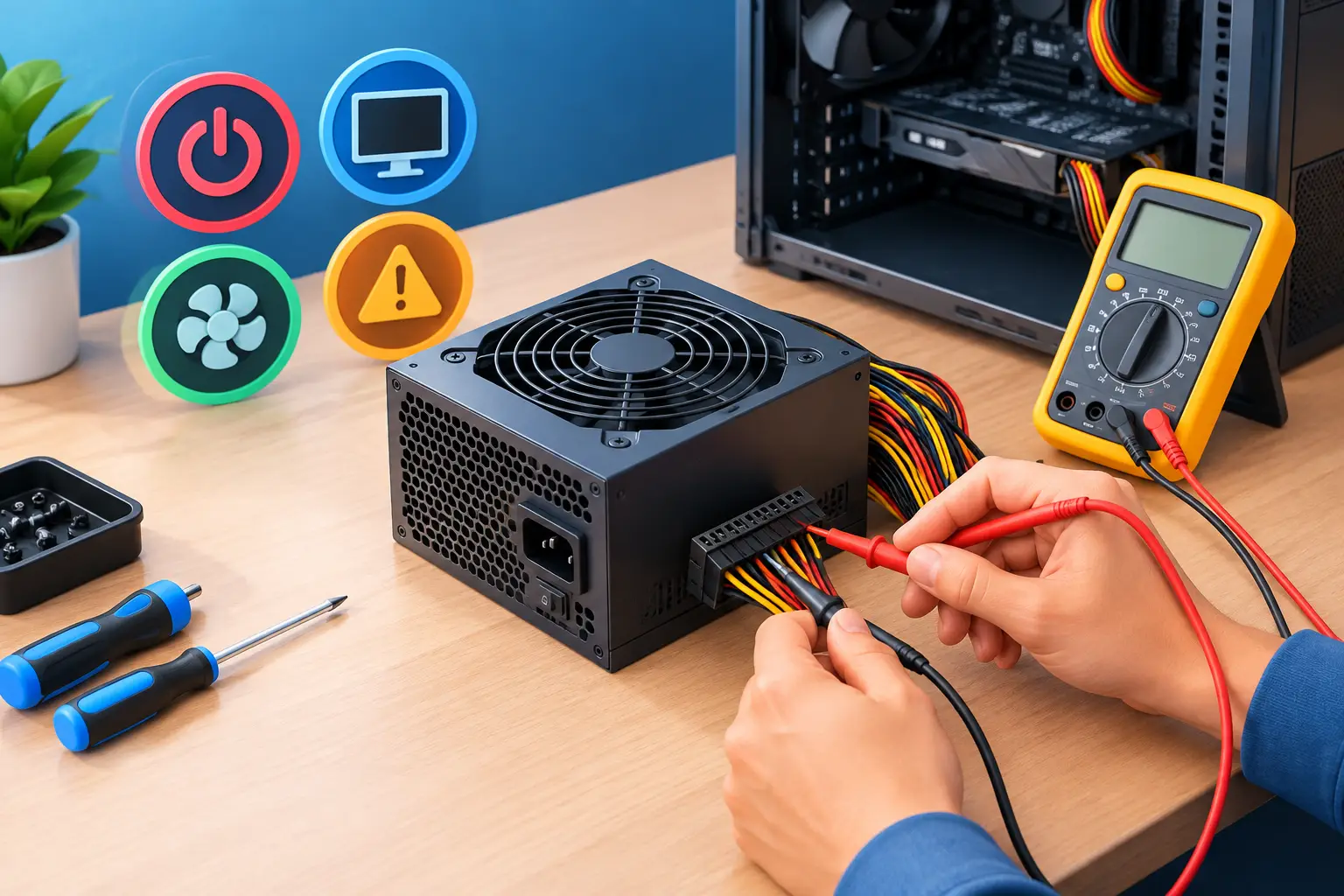
A computer that suddenly will not start can feel like a major setback, especially when work files, school projects, or business systems are waiting. Before assuming the whole computer has failed, it helps to diagnose computer power supply problems carefully. A failing power supply can cause a completely dead PC, random shutdowns, reboot loops, and other issues that look like a bad motherboard, hard drive, or Windows problem.
The good news is that a few safe checks can narrow down the cause quickly. The key is knowing what you can test from the outside and when to stop and call for help.
What the Power Supply Does
The power supply unit, often called the PSU, converts wall power into the lower-voltage electricity used by your computer’s motherboard, processor, graphics card, storage drives, cooling fans, and USB devices. If that power is unstable, insufficient, or absent, the computer cannot operate reliably.
Desktop power supplies are more likely to be a separate, replaceable component. Laptop charging and power problems are different because the external charger, charging port, battery, and internal power circuitry can all be involved. This article focuses mainly on desktop PCs, including home computers, gaming systems, and office workstations.
Signs You May Have a Failing Power Supply
A power supply does not always fail all at once. Sometimes it gives warnings first. If your computer has one or more of these symptoms, the PSU deserves attention:
- The computer does nothing when you press the power button, with no lights, fans, or startup sounds.
- It powers on briefly, then immediately turns off or restarts.
- It shuts down during games, video editing, large downloads, or other demanding work.
- Fans spin but the screen stays black and the computer never fully starts.
- You smell burning plastic, see smoke, hear popping, or notice sparks.
- The system becomes unstable after a new graphics card, additional drives, or other hardware was installed.
These signs do not prove the power supply is at fault. A loose cable, damaged wall outlet, failed motherboard, overheating processor, bad RAM, or defective graphics card can produce similar behavior. Good diagnosis is about ruling out simple causes before replacing parts.
Start With Safe External Checks
Before opening the computer case, unplug unnecessary accessories and check the simple items that are easy to miss. Make sure the power cable is firmly connected to both the wall outlet or surge protector and the back of the PC. If the power supply has a rear rocker switch, confirm it is set to the line symbol, not the circle symbol.
Try a different known-good wall outlet. If the computer is plugged into a power strip, bypass the strip temporarily. Surge protectors and battery backups can fail, even when their indicator lights still appear normal. You can also try a known-good power cable if you have one with the same connector.
Look for physical warning signs around the back of the machine. A burning smell, melted connector, buzzing, visible damage, or excessive heat means you should stop testing and unplug the computer. Do not keep trying to turn it on. Repeated power attempts can damage other components.
Check Whether the Problem Is the Computer or the Display
It is easy to mistake a display problem for a power problem. If the computer’s fans and lights come on, but the monitor is black, confirm that the monitor has power and is set to the correct input. Reseat the display cable at both ends, or test with another cable or monitor if one is available.
Also pay attention to the computer’s behavior. Does it stay on, even though there is no picture? Do keyboard lights respond when you press Caps Lock? Does it make a normal startup sound? Those details can help separate a no-display issue from a true power failure.
How to Diagnose Computer Power Supply Issues Inside the Case
If you are comfortable working around PC components, shut the system down, unplug it, and hold the front power button for several seconds before removing the side panel. This helps discharge remaining low-voltage power from the system, but it does not make the inside of the PSU safe to open.
Check that the large motherboard power connector and processor power connector are fully seated. A partially loose CPU power cable can cause a computer to appear completely dead. If the system has a dedicated graphics card, verify that its PCIe power connectors are secure as well.
Look for loose drive cables, a fan wire caught in a blade, or signs that a recent hardware upgrade introduced a problem. A new graphics card may require more power than the existing PSU can supply. That can lead to crashes under load, random restarts, or failure to start at all.
Do not open the power supply housing itself. Power supplies contain capacitors that can retain a dangerous electrical charge even after the unit is unplugged. There are no user-serviceable repairs inside a PSU. If the unit is faulty, replacement is the safe answer.
Why a Paper Clip Test Is Not a Full Diagnosis
You may see instructions online for a paper clip test, which manually starts a disconnected power supply to see whether its fan spins. While this can show that a PSU is not completely dead, it does not confirm that the unit is delivering stable, correct voltage under real load.
A failing power supply can pass that basic test and still cause crashes, data corruption, or shutdowns once the processor and graphics card begin drawing power. Some newer units also keep the fan off at light load by design, so a non-spinning fan is not always a failure.
For an accurate answer, a technician can test the unit with a PSU tester or multimeter, inspect system voltage readings, and verify behavior with known-good components. That approach avoids replacing a power supply when the real fault is a motherboard, graphics card, memory module, or power button.
When Power Supply Replacement Makes Sense
Replacement is usually appropriate when a PSU fails voltage testing, has physical damage, makes electrical noises, produces a burning smell, or cannot keep the computer stable under normal use. Age matters too. A low-quality or heavily used unit can weaken over time, particularly in gaming PCs and workstations that run demanding tasks for long hours.
The replacement must be chosen for more than wattage. It needs the right motherboard, CPU, graphics card, SATA, and PCIe connectors. It should also fit the case and provide enough capacity for the full system, with reasonable headroom for power spikes and future upgrades.
Buying the highest wattage unit available is not always necessary. An office desktop may run well on a modest, quality power supply, while a gaming computer with a high-end graphics card may need substantially more capacity. Build quality, protections, connector availability, and correct installation matter just as much as the number printed on the label.
Protect Your Data and Other Components
Unstable power can affect more than startup. Sudden shutdowns can corrupt open documents, damage operating system files, and interrupt updates. If the computer still runs intermittently, back up important files as soon as possible rather than waiting for the next failure.
For small businesses, recurring power-related restarts can interrupt shared files, point-of-sale systems, remote access, and employee productivity. The right fix may include replacing the PSU, checking the battery backup, evaluating the outlet circuit, or reviewing whether a server or workstation has enough clean power for its workload.
When to Call for On-Site Help
Call for professional help if the computer has a burning smell, keeps shutting down, will not turn on after basic outlet and cable checks, or has important business data that cannot be put at risk. The same applies if you recently installed new hardware and are unsure whether the power supply is large enough or correctly connected.
A technician can isolate the fault without guessing, explain whether repair is worthwhile, and install a properly matched replacement when needed. For Salt Lake City homes and small businesses, Don’t Panic! Computer Repair can come to you, diagnose the issue, and provide a clear estimate before work moves forward.
A computer power problem does not have to become a long outage. Stop using the system if you notice electrical warning signs, protect your data when possible, and get a clear diagnosis before spending money on parts that may not solve the problem.