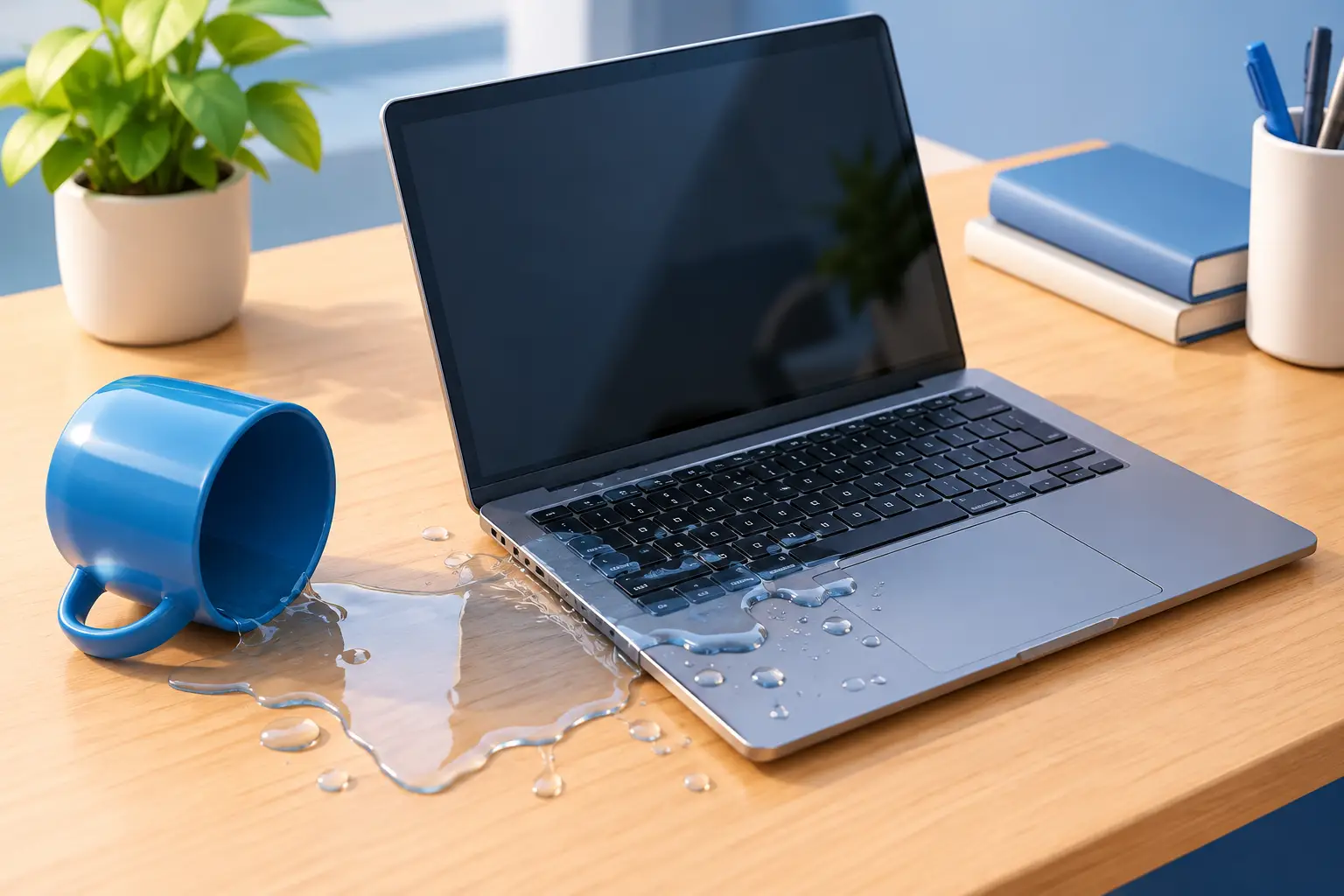
Does laptop water damage matter? Yes. A few ounces of water can turn a working laptop into a device that will not start, charge, connect to Wi-Fi, or keep important files safe. The real problem is not always what happens in the first minute. Moisture left inside can cause corrosion that slowly damages components days or weeks after the spill.
The good news is that a spill does not automatically mean you need a new computer. Fast, careful action can make a major difference. What you do next, and how quickly the laptop is inspected, helps determine whether this is a simple cleanup or a more involved repair.
Why laptop water damage matters
Laptops pack the motherboard, battery, keyboard, charging circuits, storage drive, cooling system, and display connections into a very small space. Water can reach several of these parts through a keyboard, vent, side port, or damaged case seam.
Plain water is less harmful than coffee, soda, wine, soup, or a sugary sports drink, but no liquid is harmless inside a computer. Minerals in tap water can leave conductive residue behind. Sugary and acidic drinks are even more likely to create sticky residue and corrosion. If the laptop is powered on while moisture is present, electricity can short out components immediately.
Some damage is obvious. The computer may shut down, flicker, make unusual sounds, or refuse to charge. Other cases are harder to spot. A laptop may appear fine after drying out, then develop keyboard failures, random shutdowns, overheating, battery issues, or a dead USB port later. That delayed failure is why a quick inspection is worth considering even when the device seems to recover.
What to do right after a spill
Your first goal is simple: stop power from moving through wet components. Do not keep working to save a document, test whether the keyboard still works, or plug the charger back in. Those quick tests can turn a cleanable spill into a damaged motherboard.
Turn the laptop off right away. If the charger is connected, unplug it from the laptop. Disconnect accessories such as USB drives, external monitors, headphones, and docking stations. If your laptop has a removable battery and you can remove it without forcing anything, take it out.
Then place the computer on a dry towel with the keyboard facing down at an angle. This can help liquid drain away from internal components rather than deeper into the machine. Blot visible moisture gently. Do not shake the laptop, because that can spread liquid to areas it had not reached.
Avoid a hair dryer, oven, space heater, or direct high heat. Excessive heat can warp plastic, damage the display, loosen adhesives, and push moisture farther inside. Rice is not a reliable repair method either. It does not remove liquid residue or stop corrosion on a circuit board.
If the spill was more than a few drops, involved anything other than clean water, or landed directly on the keyboard or ports, arrange professional diagnostics as soon as possible. The sooner the device can be opened, assessed, and cleaned correctly, the better the odds of avoiding long-term damage.
When a laptop may be safe to use again
A small amount of clean water on the exterior may not require repair if it never entered the keyboard, ports, vents, or case. For example, wiping a few drops off a closed laptop lid is very different from spilling a full glass across an open keyboard.
Even so, there is no dependable amount of time that makes a wet laptop automatically safe to power on. Leaving it off overnight may allow some surface moisture to evaporate, but it does not confirm that internal components are dry or free of mineral deposits. This is especially true for thin laptops, MacBooks, and devices with non-removable batteries.
If you need the computer for work, school, or a small business, do not gamble with a device that contains essential files. A professional can assess the extent of the exposure and explain whether cleaning, parts replacement, data recovery, or replacement makes the most financial sense.
Warning signs after a liquid spill
Watch for changes that begin immediately or show up later. A sticky or unresponsive keyboard, a trackpad that clicks incorrectly, a screen that flickers, unexpected restarts, charging trouble, a burning smell, or corrosion around ports all deserve attention.
Also pay attention to battery behavior. If the laptop gets unusually hot, drains quickly, will not recognize its charger, or has a swollen battery, stop using it and disconnect power. A swollen battery is a safety concern, not just an inconvenience.
Repair, replacement, or data recovery?
The right option depends on where the liquid reached, the age and value of the computer, and whether its files are backed up. A keyboard replacement or internal cleaning may be a sensible repair on a newer laptop with plenty of useful life left. If liquid damaged the motherboard, display, and battery at once, replacement may be the more practical choice.
Data can sometimes be recovered even when the laptop itself is not worth repairing. That depends on the type of storage and the degree of damage. Many modern laptops use soldered storage, which can make recovery more complicated than removing a traditional drive. This is another reason not to repeatedly power on a wet machine. Each attempt can make data recovery harder.
For business laptops, the decision involves more than hardware cost. Downtime, lost access to customer information, missed deadlines, and interrupted employee work all matter. A prompt diagnosis gives you a clearer decision instead of leaving a questionable laptop in service until it fails at the worst possible time.
How to prevent future water damage
No one plans to spill a drink on a laptop, but a few habits reduce the risk. Keep drinks away from the keyboard whenever possible, especially during video calls and late-night work. Use a spill-resistant bottle instead of an open cup near your desk. Back up essential files regularly, because backups protect you whether the problem is water damage, theft, hardware failure, or accidental deletion.
For mobile workers, students, and families, a fitted case can help protect against minor splashes during transport, but it will not make a laptop waterproof. If you work in a garage, kitchen, warehouse, or job site, consider where the laptop sits and keep it above areas where liquids can collect.
Get a clear answer before the damage spreads
Liquid damage is stressful because the outcome is not always obvious from the outside. A laptop that starts today may still have residue quietly corroding a connector or circuit. On the other hand, a fast shutdown and proper inspection may save a device that first looked beyond help.
For Salt Lake City-area residents and businesses, Don’t Panic! Computer Repair can come to you for diagnostics and practical repair guidance. You will get a straightforward explanation of what was affected, what can be fixed, and whether repair is worth the cost. If a spill happens, turn the laptop off, keep it unplugged, and get help before a small accident becomes a larger interruption.