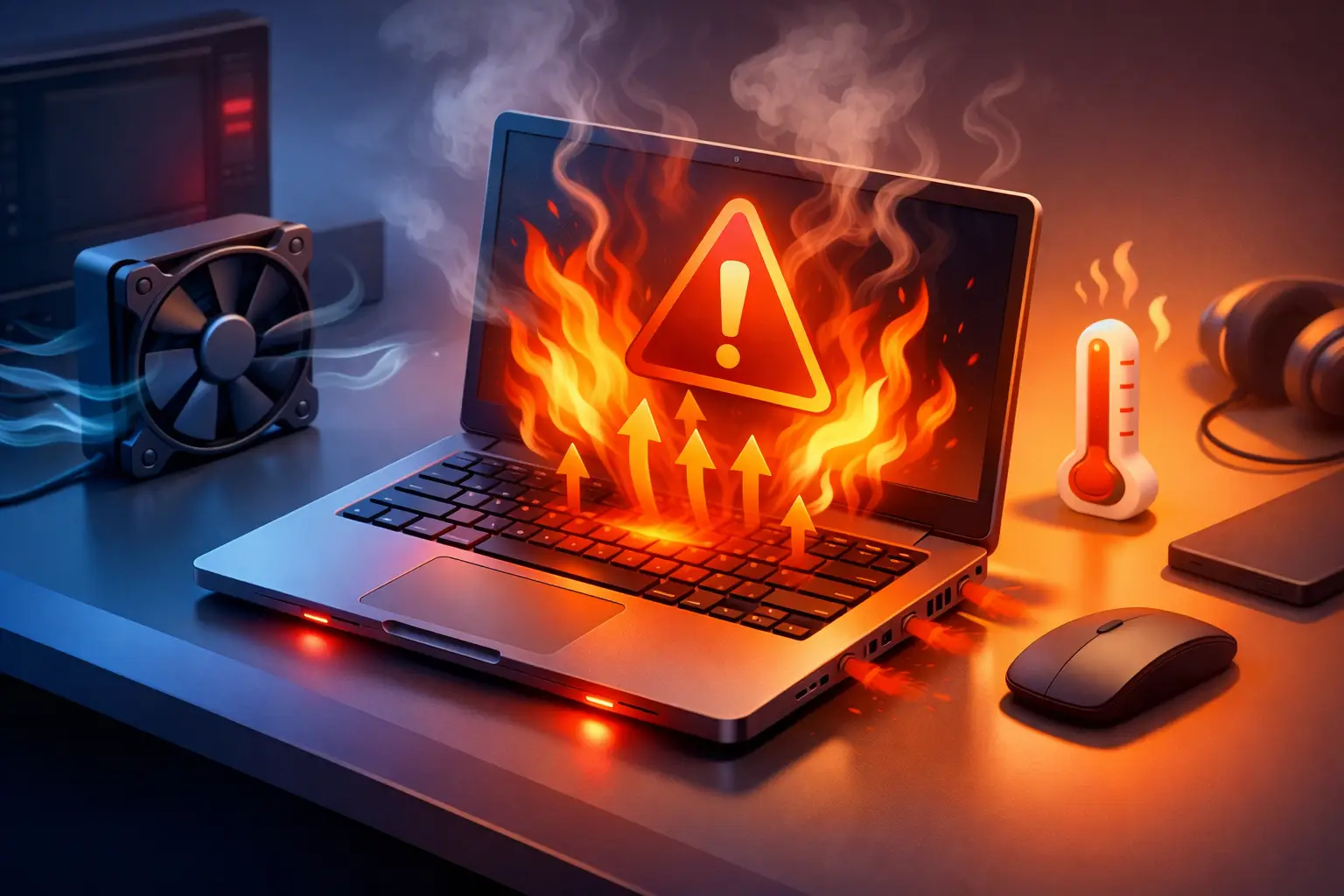
A laptop that feels hot enough to warm your hands is one thing. A computer that sounds like a jet engine, slows to a crawl, shuts itself off, or throws up random errors is another. If you’re asking, why is my computer overheating, the short answer is that heat is building up faster than your system can remove it. The real question is why that is happening now.
Why is my computer overheating all of a sudden?
Most overheating problems come down to airflow, workload, or failing hardware. Sometimes it is simple, like dust packed into the vents. Other times, the cause is less obvious, like a bad cooling fan, dried thermal paste, a background process pushing the CPU to 100%, or a graphics card working harder than it should.
Computers are designed to run warm, but not endlessly hot. When internal temperatures climb too high, the system protects itself. That can look like loud fans, lag, screen freezes, random restarts, or a complete shutdown. In a business setting, it can also mean corrupted files, interrupted updates, and lost productivity.
Laptops are especially prone to heat issues because the cooling components are tightly packed into a small space. Desktops usually have more room to breathe, but they can still overheat if fans fail, dust builds up, or the case has poor airflow.
The most common causes of overheating
Dust is the first thing to suspect. Over time, dust collects on fan blades, heat sinks, vents, and filters. That layer acts like insulation. It traps heat and makes the fans work harder while moving less air. If your computer has not been cleaned in a while, this is often the starting point.
Blocked airflow is another common issue. A laptop used on a bed, couch, blanket, or even your lap can have its vents partially covered. Desktops can run hot when they are pushed into tight cabinets, set against a wall, or surrounded by clutter. The computer may be fine internally, but it cannot get rid of the heat it is generating.
High resource usage also matters. Video editing, gaming, large spreadsheet work, design software, and some browser-heavy workflows can push temperatures up quickly. That is normal to a point. What is not normal is when basic tasks like email or web browsing cause major heat. That often points to hidden background activity, malware, driver problems, or failing cooling hardware.
Fans themselves can fail or wear down. A fan may stop spinning entirely, spin too slowly, or make grinding noises. In laptops, fan issues can become serious fast because there is little room for heat to go anywhere else. In desktops, one failed case fan may not cause instant shutdowns, but it can raise internal temperatures enough to shorten component life.
Thermal paste is another piece people rarely think about. This material sits between the processor and its heat sink, helping transfer heat away from the chip. Over time, it can dry out or lose effectiveness. Replacing it is not usually a first step for casual users, but on older systems it can absolutely be part of the problem.
Signs your computer is too hot
Some symptoms are obvious. The case feels unusually hot, the fan runs constantly, or the machine shuts off during use. Others are easier to misread. Slow performance, stuttering video, blue screens, or programs crashing under load can all be heat-related.
A desktop that runs fine in the morning but struggles later in the day may be dealing with rising ambient room temperature or poor ventilation. A laptop that only overheats when plugged in may be pushing into a higher performance mode. A computer that overheats only during gaming may be dealing with a GPU cooling problem instead of a general system issue.
The details matter because overheating is not always one single fault. Sometimes two smaller issues combine, like dust buildup plus a failing fan, or blocked vents plus a browser tab storm and a dozen startup apps.
What you can do right away
Start by shutting the computer down and letting it cool off. If it is already doing emergency shutdowns, do not keep forcing it back on just to finish one more task. Repeated heat stress is hard on internal components.
Check the vents next. If you can see dust packed into them, that is a clue. For laptops, make sure the machine is sitting on a hard, flat surface. For desktops, make sure the case has several inches of open space around it. If the computer is tucked into a closed cabinet, move it.
Listen to the fans. If they are unusually loud, that can mean the system is trying to keep up with rising temperatures. If you hear no fan movement at all when the computer is hot, that can point to fan failure. Clicking, buzzing, or grinding usually means a mechanical issue and not just normal fan noise.
Then look at what the system is doing. Open Task Manager on a Windows PC and check CPU, memory, and disk usage. If a process is consuming a large amount of system resources for no clear reason, that may be the source of the heat. Sometimes it is a stuck update, cloud sync issue, browser extension, or antivirus scan. Sometimes it is something less friendly.
If you are comfortable doing so, a careful cleaning with compressed air can help. The keyword here is careful. Blasting dust deeper into the machine, spinning fans too aggressively, or opening a laptop without experience can create more problems than it solves. This is where many people turn a simple maintenance issue into a repair visit.
When overheating means something more serious
If the computer keeps overheating after basic cleaning and better airflow, it is time to look deeper. Persistent overheating can point to a bad internal fan, heat sink separation, failing power supply, GPU trouble, battery issues in a laptop, or thermal paste failure.
In some cases, overheating is not even the root problem. It is the symptom. Malware can peg the processor in the background. A failing hard drive can cause constant read attempts and system strain. Incorrect BIOS settings, bad drivers, or overclocking can raise temperatures too. Gaming PCs and workstations are especially sensitive to cooling balance because performance parts generate more heat and need better airflow design.
For small businesses, this is where waiting gets expensive. A workstation that keeps shutting down in the middle of accounting, inventory, design work, or remote access sessions is more than an annoyance. It is downtime. Servers, network appliances, and office desktops that run hot can fail without much warning if the issue is ignored.
Why laptops overheat more often than desktops
People often ask why their laptop overheats while the desktop in the same room seems fine. The answer is mostly physical design. Laptops have smaller fans, tighter internal spacing, and less room for air movement. They also collect dust faster in narrow vent channels and are more likely to be used on soft surfaces that block intake.
Battery condition can also play a role. A swollen or failing battery can create heat issues and should be treated seriously. If a laptop case is bulging, the trackpad is lifting, or the bottom panel is separating, stop using it and have it checked right away.
When to call for professional help
If your computer is shutting down, showing errors, making unusual noises, or staying hot after you have improved airflow and checked for heavy resource use, it is time for a proper diagnosis. That is especially true if you rely on the machine for work, school, or business operations and cannot afford guesswork.
A professional can check internal temperatures, test fan operation, inspect for dust buildup inside the chassis, verify heat sink contact, look for malware, and rule out failing components. More importantly, you get an answer that fits the actual problem instead of trying five random fixes from five different forums.
For local users, this is exactly the kind of issue Don’t Panic! Computer Repair handles on-site. Heat problems often look simple from the outside, but the fix depends on whether the cause is maintenance, hardware failure, software strain, or a combination of all three.
How to prevent it from happening again
Prevention is usually less complicated than repair. Keep vents clear, use laptops on hard surfaces, clean dust before it becomes packed in place, and pay attention when fan noise changes. If your computer suddenly gets louder, hotter, or slower, do not ignore it for weeks.
It also helps to be realistic about workload. An older laptop may handle email and streaming just fine but struggle with newer games, heavy creative software, or all-day multitasking on an external monitor. That does not always mean something is broken. Sometimes it means the hardware is being asked to do more than it can cool effectively.
A hot computer is not always a crisis, but it is always a signal. The sooner you catch what is causing it, the better your chances of avoiding a bigger repair and getting back to normal without the stress.