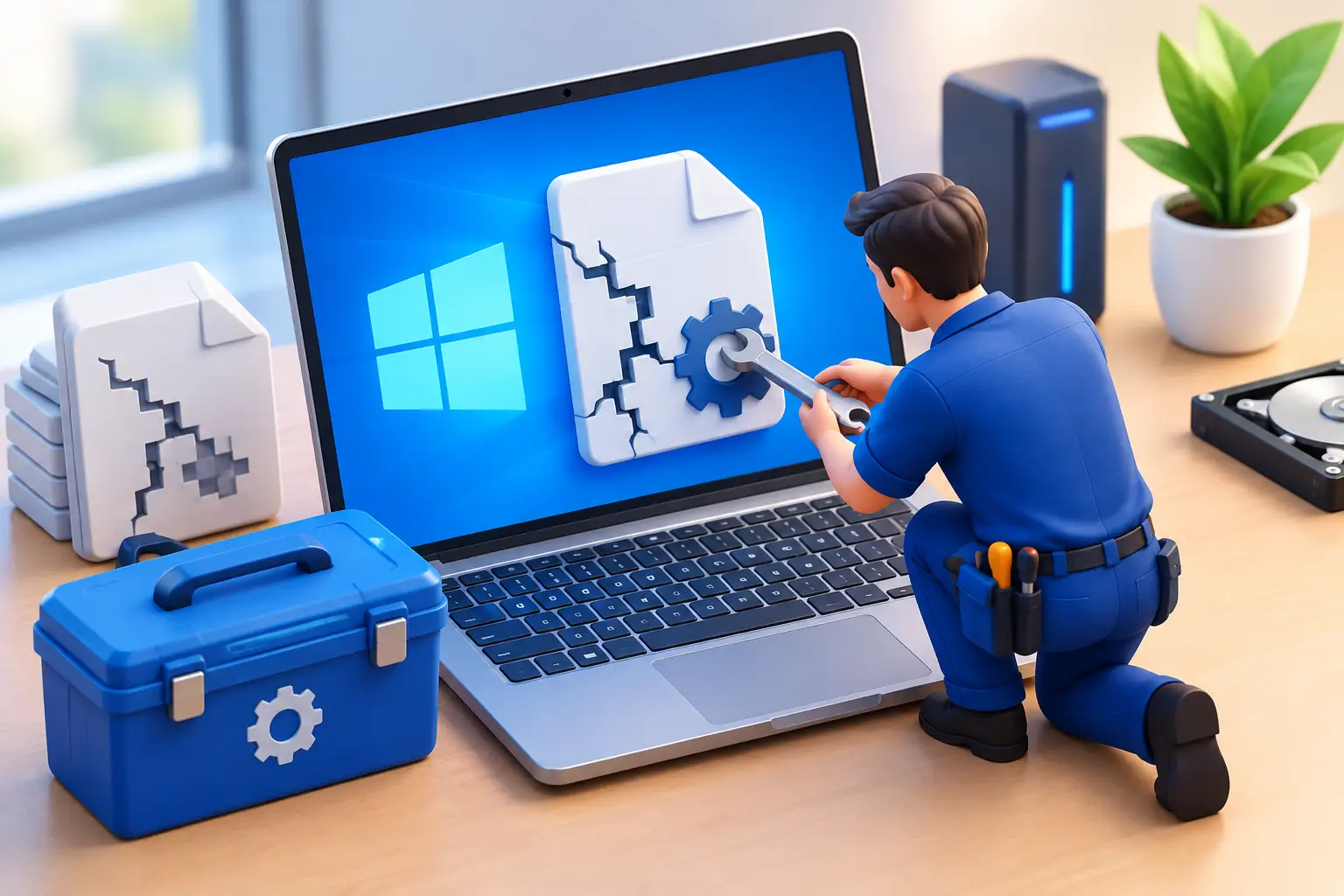
A Windows computer can fail without warning: it freezes at the logo, loops into Automatic Repair, shows a blue screen, or loads a blank desktop with missing files. When people ask, “can technicians fix corrupted Windows,” the reassuring answer is often yes. The right repair depends on what was corrupted, why it happened, and whether the computer’s drive is still healthy.
Corruption does not automatically mean your computer is finished or that your files are gone. A technician can usually determine whether the problem is limited to Windows system files, a bad update, a failing drive, malware, or a deeper hardware issue. That diagnosis matters because the fastest fix is not always the safest one.
What Does a Corrupted Windows Installation Mean?
Windows relies on thousands of system files, drivers, settings, and boot records working together. If one or more of those pieces becomes damaged, the computer may not start correctly or may behave unpredictably. You might see error messages, programs that refuse to open, frequent crashes, missing user profiles, or a system that takes an unusually long time to boot.
Common causes include an interrupted update, sudden power loss, a forced shutdown, failing storage hardware, malware, incompatible drivers, and software conflicts. A laptop that loses power during an update can have a very different problem from a workstation whose hard drive is physically wearing out.
That is why a technician should not jump straight to reinstalling Windows. Reinstallation can solve many software problems, but it may erase data if it is handled carelessly. First, the goal is to identify the source of the corruption and protect anything that matters.
Can Technicians Fix Corrupted Windows Without Reinstalling?
In many cases, yes. Technicians can repair corrupted Windows files without wiping the computer, especially when the storage drive is working properly and Windows can still access the recovery environment.
The repair process may begin with startup repair tools, system file checks, disk checks, boot configuration repair, driver removal, or rolling the computer back to a previous restore point. If a recent Windows update caused the issue, uninstalling that update may get the system running again. When a computer starts in Safe Mode, a technician may be able to remove problematic software, scan for malware, or repair damaged user settings from there.
For systems with more serious file damage, a technician can use Windows recovery tools or a separate boot environment to repair the installation. This can restore missing or damaged system components while keeping installed programs and personal files intact.
There is no guarantee that every corrupted installation can be repaired in place. If Windows has widespread damage, repeated repair attempts can take more time than a clean installation and still leave the computer unreliable. In that situation, backing up recoverable data and reinstalling Windows is often the better long-term answer.
When a Windows Reinstall Is the Smarter Fix
A clean Windows installation is not a failure. Sometimes it is the most dependable way to return a computer to stable performance. It is often recommended when malware has deeply affected the system, corruption keeps returning, the machine has accumulated years of conflicting software, or key Windows services cannot be repaired.
A technician can help make this process far less disruptive. Before reinstalling, they can attempt to copy documents, photos, browser data, accounting files, desktop folders, and other important information. They can also confirm whether your drive needs replacement before putting a fresh copy of Windows on it.
After the installation, the computer still needs proper setup. That includes installing correct device drivers, applying Windows updates, restoring data, configuring email and printers, and reinstalling essential applications. For a home user, that can mean getting back to school, work, and personal files. For a small business, it can mean restoring access to shared folders, line-of-business software, network printers, and secure accounts with minimal downtime.
The Drive May Be the Real Problem
Windows corruption is sometimes a symptom, not the root cause. A failing hard drive or solid-state drive can damage files as it struggles to read and write data. If the computer makes clicking noises, reports disk errors, randomly freezes, or repeatedly corrupts Windows after repairs, the drive should be tested.
Replacing a failing drive before it stops working completely can make the difference between a straightforward data transfer and an expensive recovery situation. A new SSD can also significantly improve startup and program loading speed on many older computers.
This is one reason free diagnosis is valuable. Repairing Windows on a drive that is about to fail may only provide a short-lived result. A good technician will explain whether the problem appears to be software, hardware, or both, then provide a clear recommendation before moving forward.
What You Should Do Before Trying DIY Fixes
It is understandable to search for a quick fix when Windows will not boot. Some built-in recovery options are safe to try, but random online instructions can create a bigger problem, especially when they involve deleting partitions, resetting the PC, editing the registry, or entering unfamiliar commands.
If you can still access your files, back up the most important ones immediately. Copy them to an external drive or a trusted cloud storage account. Prioritize documents, photos, business records, project folders, and anything stored only on the desktop or in Downloads.
Avoid repeatedly forcing the computer off during startup. Do not keep restarting a machine that is making unusual sounds or showing drive errors. And if BitLocker encryption is enabled, make sure you can locate the recovery key before major repairs begin. That key may be connected to your Microsoft account, a work account, or an organization’s IT records.
For business computers, it is also wise to pause before resetting anything. A workstation may contain specialized software, mapped network drives, saved credentials, local databases, or settings that are difficult to recreate. The fastest-looking option can become costly if it disconnects an employee from the tools they need to work.
What a Technician Can Usually Recover
The outcome depends on the condition of the storage drive and whether data has been overwritten. When Windows itself is corrupted but the drive remains readable, technicians can often recover personal files even if the computer will not boot normally.
Commonly recoverable items include documents, photos, videos, spreadsheets, downloads, user folders, browser bookmarks, and many application data files. Some programs store information in less obvious locations, so an experienced technician looks beyond the standard Documents folder.
Recovery becomes more difficult when a drive has physical damage, severe file system damage, or has been heavily used after data was deleted. It can also be complicated by encryption, including BitLocker. That does not mean recovery is impossible, but it does mean the right next step should be chosen carefully rather than guessed.
How Long Does It Take to Repair Corrupted Windows?
Simple Windows repairs can sometimes be completed in a single visit or remote support session. More complicated issues may take longer, particularly if the computer needs a data backup, malware cleanup, drive replacement, or full reinstall.
The timing also depends on the size of the drive, the amount of data to move, the speed of the computer, and whether business software must be restored. A technician should give you a realistic estimate after checking the system, not promise a one-size-fits-all turnaround.
For Salt Lake City customers who need help quickly, Don’t Panic! Computer Repair can diagnose the issue on-site or remotely when appropriate, explain the options in plain language, and work toward the least disruptive fix. Clear hourly billing at $80 per hour means you can make an informed decision before an uncertain computer problem turns into more lost time.
Preventing Windows Corruption From Happening Again
Not every failure can be prevented, but a few habits reduce the risk. Keep Windows and security software updated, use a quality surge protector for desktop computers, leave enough free storage space, and avoid shutting down the computer while updates are installing. Most importantly, maintain a backup that is separate from the computer itself.
For small businesses, reliable backups and drive health monitoring are especially worthwhile. One corrupted workstation is inconvenient. A failed server, shared drive, or networked accounting computer can interrupt an entire team.
A corrupted Windows installation is stressful because it puts work, files, and access to your digital life on hold. The practical next step is to stop guessing, protect the data you can, and let a technician determine whether Windows needs repair, replacement, or a deeper hardware fix.