A slow shared drive, dropped video calls, and a Wi-Fi password passed around on sticky notes are not minor office annoyances. They are signs that your technology is working harder than it should. This small office network setup guide walks through the decisions that help a Salt Lake City business build a network that supports daily work without turning every connection issue into an emergency.
Start With the Work Your Network Must Support
Do not start by buying a router. Start by looking at how people work. A five-person accounting office has different needs than a 15-person design team moving large files, a clinic handling private information, or a warehouse using tablets and wireless scanners.
Count the people who work in the office, but also count their devices. One employee may use a desktop, laptop, phone, and tablet. Add printers, smart TVs, cameras, door systems, phones, and guest devices. A small office with 10 employees can easily have 40 or more devices trying to connect.
Think about the traffic as well. Email and web browsing use relatively little bandwidth. Cloud backups, video meetings, security cameras, large media files, and off-site file syncing can put real pressure on an internet connection. If employees regularly complain about calls freezing at the same time each afternoon, the issue may be internet capacity, weak Wi-Fi coverage, or both.
This planning step keeps you from paying for hardware that is too small for the job or far more complicated than your office needs.
Build the Small Office Network Around the Right Core Equipment
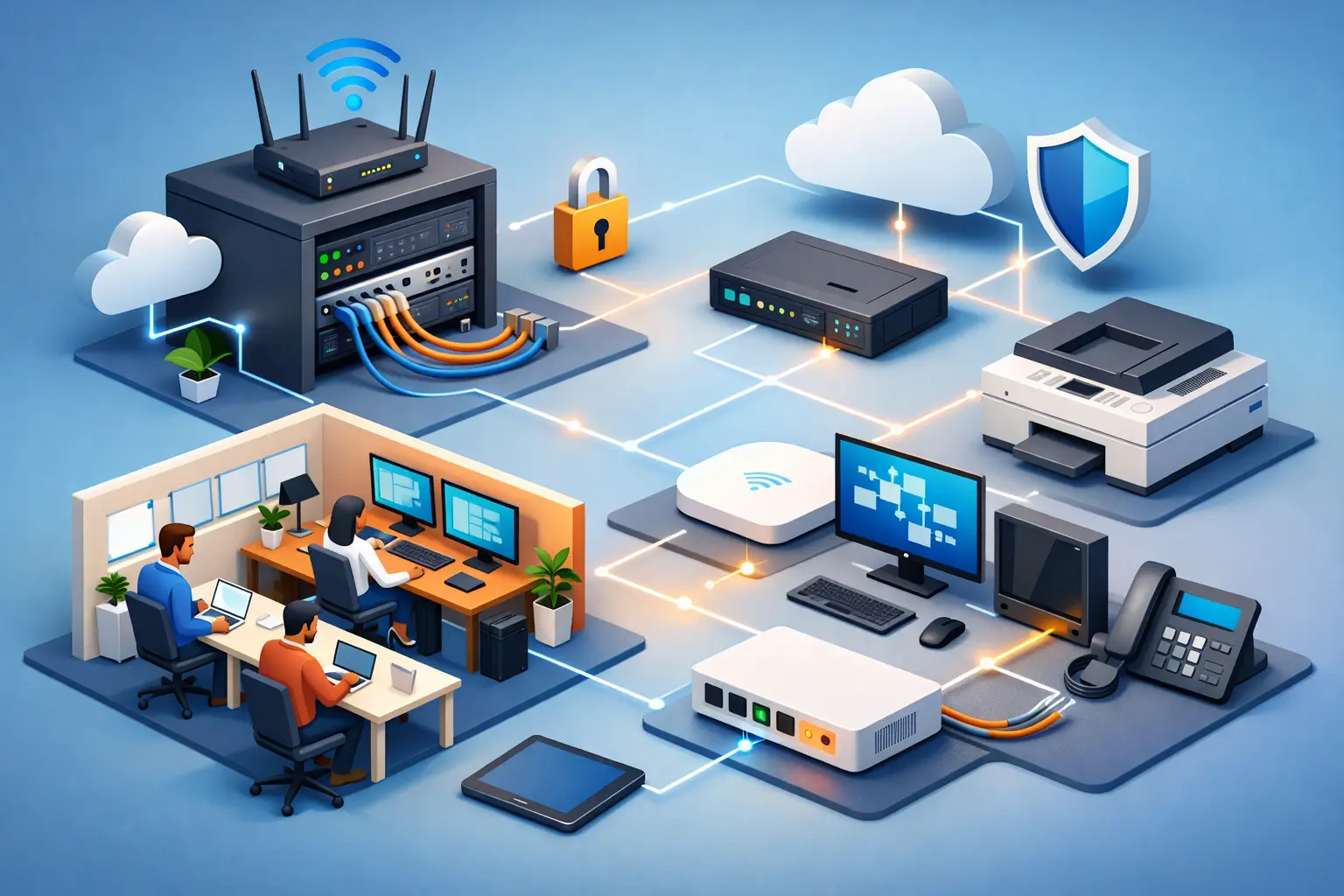
For most offices, the network begins with an internet connection, modem or gateway, business-grade router or firewall, network switch, and wireless access points. Each part has a different job.
Your internet provider delivers the connection. The firewall or router controls traffic entering and leaving the office. A switch connects wired equipment such as desktops, printers, servers, phones, and access points. Wireless access points provide Wi-Fi where people actually work.
Consumer all-in-one routers can be fine for a home office with a few devices. They are often a poor fit for a growing business, particularly when the device sits in a closet at one end of the building and everyone expects it to cover the entire office. Business-grade equipment usually gives you better coverage, clearer security controls, separate networks, monitoring, and the ability to expand without replacing everything.
A wired connection is still the best choice for stationary equipment that needs speed and reliability. Desktops, servers, network storage, printers, and fixed workstations should use Ethernet when possible. Wi-Fi is excellent for laptops, phones, and tablets, but it is shared airspace. Walls, metal shelving, neighboring networks, and distance all affect it.
Place Wi-Fi Access Points Where People Work
One access point in the server room is rarely the answer. Wi-Fi equipment should be placed in open, central areas with a clear path to users, not buried in a cabinet, under a desk, or behind thick walls.
Larger offices may need two or more access points. More access points are not automatically better, though. Poor placement or incorrect configuration can create overlapping signals and roaming problems. A basic site review before installation can prevent dead zones in conference rooms, back offices, and reception areas.
Separate Business, Guest, and Sensitive Devices
One of the most useful security steps is separating devices that do not need to communicate with each other. Staff computers and business systems should be on the primary office network. Visitors should use a separate guest Wi-Fi network. Cameras, smart displays, and other connected devices may also belong on their own network segment.
This setup helps in two ways. Guests can get online without seeing company computers or printers. It also limits the damage if a low-cost smart device is compromised or begins causing network trouble.
Use a clear guest password and change it when appropriate. Keep the business Wi-Fi password limited to employees and authorized contractors. Avoid using the same password for Wi-Fi, email, cloud accounts, and router administration. One reused password can create several problems at once.
For offices handling financial records, health information, legal documents, or other confidential data, network separation is only one part of the picture. Access controls, encrypted devices, secure backups, and policy requirements may need a closer review.
Make Security Part of Setup, Not a Later Project
Small businesses are often targeted because attackers expect weaker protections and limited internal IT resources. The goal is not to make work difficult. It is to close the common gaps that cause expensive downtime.
Start with a properly configured firewall. Replace default administrator usernames and passwords, apply firmware updates, and turn off remote administration unless it is genuinely needed and secured. Use strong, unique passwords for all administrative accounts and enable multi-factor authentication for email, cloud software, financial systems, and remote access.
Every workstation should have current operating system updates, reputable security software, and a standard user account for everyday work. Employees should not routinely use administrator accounts just to open email or browse the web.
It also helps to decide who owns each account. When a staff member leaves, you need a process to remove access to email, shared files, software, password managers, and the office network. This is easier when accounts are assigned to named users rather than shared among a department.
Do Not Treat Backups as a Storage Plan
A shared drive is not automatically a backup. Neither is a single external drive left next to the computer it is supposed to protect. Hardware fails, files get deleted, ransomware can spread, and an office can suffer theft, fire, or water damage.
Use backups that are automatic, protected from routine editing, and stored in more than one place. For many small offices, that means a local backup for quick recovery plus an encrypted off-site or cloud backup for a larger event. Test restoration regularly. A backup that has never been tested is only a hopeful assumption.
Decide what needs priority recovery. For some businesses, it is the customer database. For others, it is accounting records, a line-of-business application, project files, or a server. Knowing this before a failure helps you choose the right backup schedule and recovery plan.
Plan for Growth and Internet Outages
A network should have room for the next employee, printer, access point, or cloud service. Choose a switch with available ports instead of filling every port on day one. Run network cable carefully, label both ends, and keep a simple record of what each port and device does. That small bit of organization can save hours during troubleshooting.
Internet outages deserve their own plan. If your office relies on cloud phone systems, online payments, remote access, or hosted files, ask what happens when the main connection goes down. A secondary connection or cellular failover may be worth the cost for a business where even one hour offline causes lost revenue.
Power protection matters too. Battery backups can keep critical networking equipment and a server running through short outages, or at least allow them to shut down safely. They do not replace a generator, but they can prevent avoidable corruption and reduce restart problems.
A Practical Network Setup Checklist
Before calling the project finished, verify these essentials:
- Wired workstations, printers, and servers have stable connections and labeled cables.
- Wi-Fi works in offices, conference rooms, reception, and other places employees need it.
- Guest Wi-Fi is separate from the business network.
- Firewall firmware, router settings, workstation updates, and passwords are current.
- Backups are running automatically and at least one file has been restored successfully.
- A designated person knows where the equipment, account details, support contacts, and network documentation are kept.
When It Makes Sense to Bring in IT Support
A basic network can be manageable for a very small office, especially if there are few devices and no sensitive systems. The trade-off is that a seemingly simple change can affect every employee when it goes wrong. Adding a server, switching phone systems, opening a second location, using security cameras, or setting up remote access are common points where professional help prevents costly rework.
An on-site technician can review coverage, cable runs, firewall settings, device separation, and the health of the equipment already in place. For Salt Lake City businesses, Don’t Panic! Computer Repair can help diagnose network problems, install and configure business equipment, and explain what is being changed in plain language.
Your office network does not need to be flashy. It needs to let people work, protect the information they rely on, and give you a clear path when something changes. A little planning now makes the next busy Monday much easier.