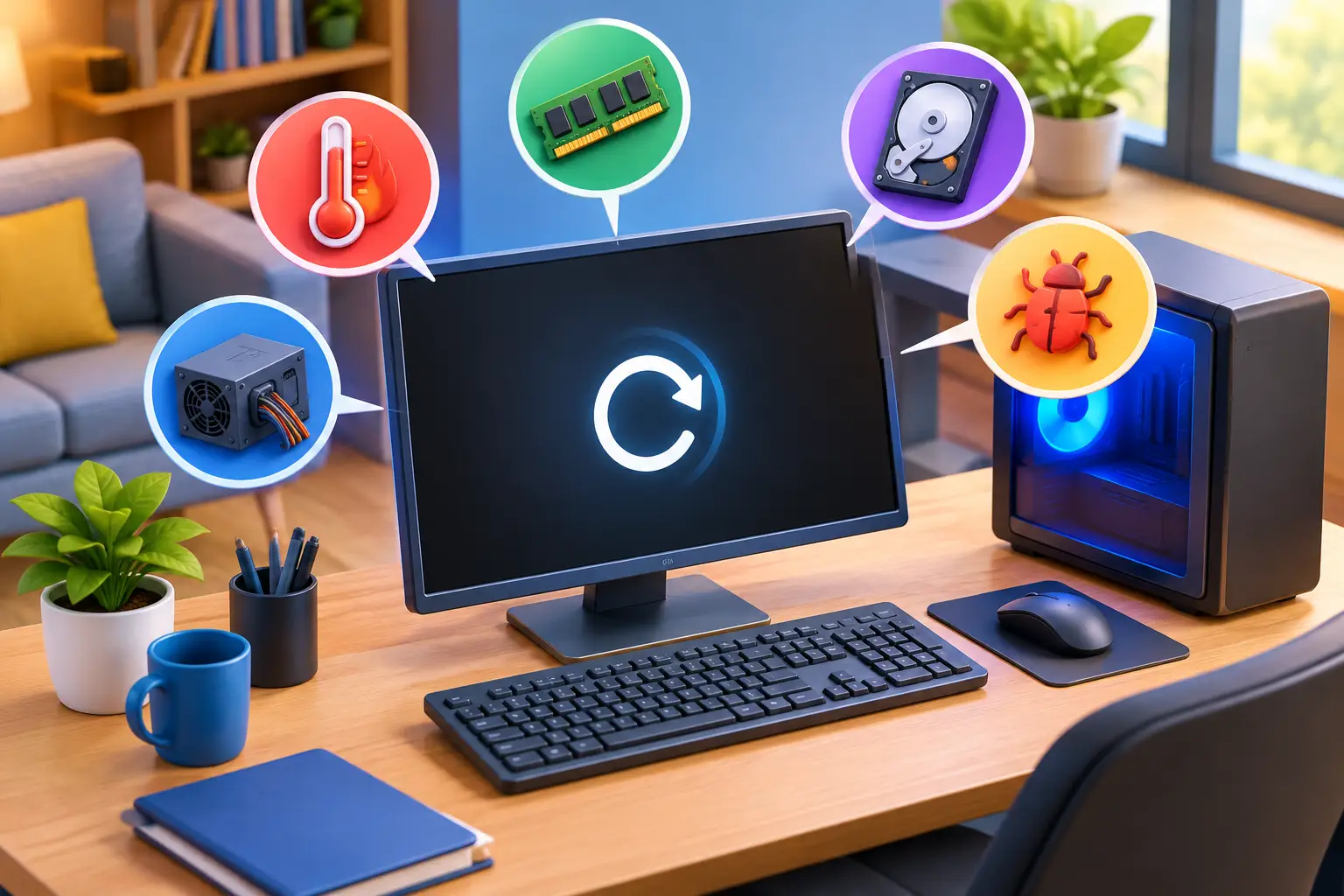
A computer that restarts without warning can turn a normal workday into a stressful one. One minute you are finishing an email, attending a class, or working in QuickBooks, and the next you are staring at a login screen with unsaved work gone. If you are asking what causes random computer restarts, the short answer is that the computer is reacting to a hardware, power, software, or heat problem. The useful answer is finding out which one before the issue damages files or brings work to a halt.
What Causes Random Computer Restarts?
Random restarts are usually a safety response, a power interruption, or a system crash. The timing matters. A PC that restarts only while gaming has a different likely cause than one that restarts while sitting idle overnight. A laptop that restarts when you move it may point to power or battery trouble, while several office computers restarting after a storm could indicate a building power issue.
Overheating and blocked airflow
Heat is one of the most common causes of sudden restarts, especially in older desktop PCs, laptops, gaming computers, and workstations that run demanding software. When a processor or graphics card reaches an unsafe temperature, the system may shut down or restart to protect itself.
Dust buildup is often the problem. Fans pull air through the case, but they also pull in dust, pet hair, and debris. Over time, vents clog, fan blades slow down, and heat gets trapped around the processor or graphics card. A failing cooling fan, dried thermal paste, or a laptop used on a blanket or couch can create the same result.
Signs of an overheating issue include loud fans, a hot case or keyboard, restarts during games or video editing, and a problem that gets worse the longer the computer runs. Do not keep pushing the system through repeated restarts. Heat can shorten the life of components and may eventually cause a complete failure.
Failing power supply, battery, or outlet
A desktop power supply converts wall power into the lower voltages your computer needs. When it begins failing, it may deliver unstable power under load. That can cause a restart when you open a demanding program, connect a USB device, or start a game.
For laptops, a worn battery, damaged charging cable, loose charging port, or incompatible replacement charger can create similar symptoms. If the computer only restarts when unplugged, the battery is a strong suspect. If it happens when the power cable is bumped, inspect the cable and connector rather than assuming Windows is at fault.
The power source outside the computer matters too. A loose outlet, overloaded power strip, weak surge protector, or brief power fluctuation can restart a desktop. If multiple devices in the same room flicker or reset, the computer may not be the real problem. For business equipment, a properly sized battery backup can help prevent brief outages from interrupting work, but it will not fix a failing power supply inside the computer.
Bad drivers, updates, and software conflicts
Windows relies on drivers to communicate with graphics cards, printers, Wi-Fi adapters, storage devices, and other hardware. A corrupted, outdated, or incompatible driver can trigger a system crash that looks like an instant restart. This often starts after a Windows update, a new printer installation, a graphics driver update, or a hardware upgrade.
Some computers are set to restart automatically after a serious Windows error, so you may never see the blue-screen message that identifies the crash. Checking the system’s reliability history or event logs can reveal whether the restart followed a driver failure, update issue, or unexpected power loss.
Software can also be involved. Security software, remote-access tools, hardware monitoring utilities, and poorly written background programs sometimes conflict with system services. That does not mean every recent update should be removed. Updates often fix serious security and stability issues. The right approach is to identify what changed around the time the problem began and test carefully.
Memory, storage, and internal hardware problems
Failing RAM can cause restarts, freezing, blue screens, programs closing unexpectedly, or errors that seem completely unrelated. Memory issues may appear only when the computer is handling a large spreadsheet, multiple browser tabs, a virtual machine, or a demanding game.
A deteriorating hard drive or solid-state drive can also make a computer unstable. If Windows cannot reliably read essential files, the system may crash or restart. Clicking noises from a traditional hard drive, slow startup, repeated repair messages, missing files, or frequent disk errors all deserve attention. Back up important data as soon as possible if storage failure is suspected.
Other internal causes include a loose RAM module, failing motherboard, damaged graphics card, or a recently installed component that is not compatible with the system. On desktops, loose cables and poorly seated parts can happen after a move, a cleaning attempt, or a hardware upgrade. On laptops, physical damage or liquid exposure can create intermittent faults that are harder to spot.
Malware and unwanted software
Malware is not the most common explanation for random restarts, but it should not be ignored. Some infections use heavy system resources, interfere with security tools, corrupt files, or change startup settings. Browser pop-ups, unknown programs, disabled antivirus protection, and unexplained account activity make this possibility more likely.
A basic security scan is a reasonable first step, but avoid installing several random cleanup tools from pop-up ads. Those programs can create more problems than they solve. If the computer contains financial records, business data, or saved passwords, treat a suspected infection seriously and change important passwords from a known-safe device.
Safe Steps to Take Before the Next Restart
Start by protecting your files. Save open work frequently and back up documents, photos, and business data if the computer stays on long enough. Repeated crashes can corrupt files, and a failing drive can deteriorate quickly.
Then look for patterns. Write down whether the restart happens during a particular task, at a certain time, after the computer warms up, or only when a specific device is connected. Note any error message, blue screen, unusual fan noise, burning smell, or power flicker. These details make diagnosis much faster.
For a desktop, make sure the power cable is firmly seated, test a different wall outlet if practical, and avoid daisy-chained power strips. For a laptop, inspect the charger for fraying or bent connectors and test whether the problem changes on battery power versus charger power. Do not open a power supply unit. It can retain dangerous electrical charge even after being unplugged.
If you recently installed a driver, update, app, RAM upgrade, or external device, disconnect or reverse that change when it is safe to do so. You can also make sure Windows is fully updated and run its built-in memory and drive checks. However, stop experimenting if restarts become more frequent, the computer will not boot normally, or you hear unusual drive noises.
When Random Restarts Need Professional Help
A one-time restart after an update may be harmless. Frequent restarts, restarts during important work, or a computer that powers off without warning are different. Those symptoms can point to failing hardware, and continued use may risk lost data.
Small businesses should act quickly when a workstation, server, network device, or shared computer is restarting. Even one unstable machine can interrupt billing, appointments, file access, and customer communication. The goal is not just to make it boot again. It is to identify the actual failure, protect business data, and reduce the chance of another interruption.
For Salt Lake City homes and businesses, Don’t Panic! Computer Repair can diagnose restart problems on-site or remotely when appropriate, explain the cause in plain language, and provide clear next steps. Free diagnostics and straightforward hourly billing help take the guesswork out of an issue that can otherwise feel urgent and unpredictable.
A random restart is your computer asking for attention, not a problem you need to solve by trial and error. Protect your data, watch for the pattern, and get help before a brief interruption turns into a longer outage.