A server should make work easier, not become the one machine everyone is afraid to touch. For many Salt Lake City small businesses, the need becomes clear when shared files are scattered across laptops, remote access is unreliable, or one failed computer threatens a full day of work. This small office server planning guide helps you make a clear decision before buying equipment that does not fit your business.
The goal is not to buy the biggest or most expensive server. It is to build a dependable setup that supports the way your team works now, protects critical data, and leaves room for practical growth.
Start With the Problems You Need the Server to Solve
A server is not automatically the right answer for every office. If your team mostly uses cloud applications, shares a small number of documents, and works from different locations, a cloud-first setup may be simpler and less expensive to maintain. On the other hand, a local server can be the right fit when you need faster on-site file access, centralized user permissions, line-of-business software, local backups, or reliable control over sensitive information.
Start by listing what is currently causing friction. Maybe employees save client files in different locations. Perhaps accounting software needs a shared database, staff need access to files from home, or your office has no dependable backup process. Specific problems lead to a better design than a vague plan to “get a server.”
Ask how many people need access, which applications they use, how much data you have today, and how quickly that data is growing. Also consider what happens if the server is unavailable for a few hours. A dental office, law firm, contractor, and creative studio may all have ten employees, but their downtime tolerance can be very different.
Small Office Server Planning Guide: Choose the Right Setup
Most small offices choose among three approaches: a physical server in the office, a cloud-hosted server, or a hybrid arrangement. Each can work well when it matches the business.
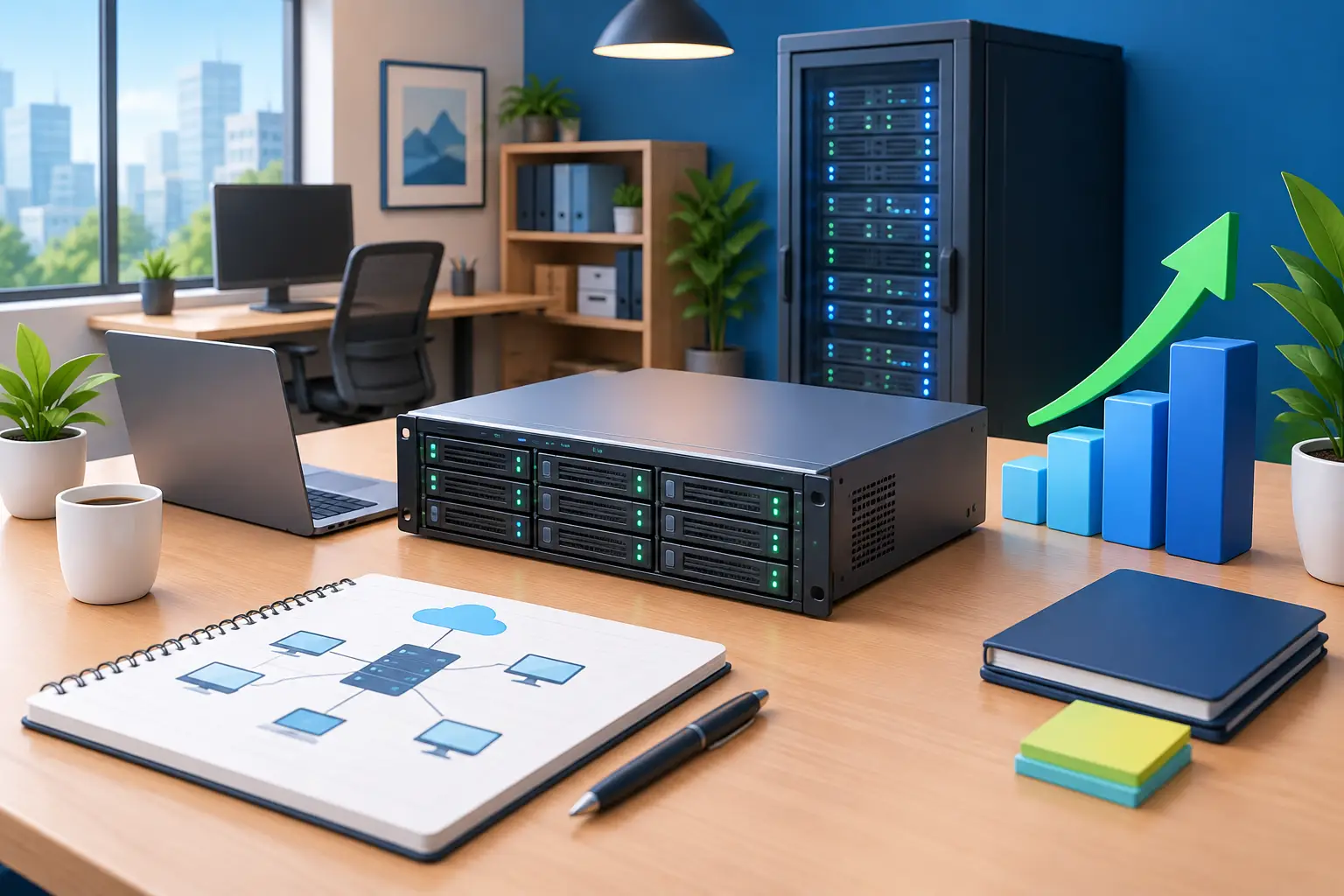
A physical server gives you local control and can provide fast performance for large files or software that works best on a local network. It also requires space, cooling, battery backup, replacement planning, and someone who can respond when hardware fails. It is often a sensible choice for businesses with a stable office location and applications that need local access.
A cloud server reduces the need to maintain hardware in your office and can make remote access easier. Monthly costs may be higher over time, and performance depends on a reliable internet connection. It can also become confusing if accounts, permissions, and backups are not managed carefully.
A hybrid setup keeps certain files or applications local while using cloud services for email, collaboration, off-site backup, or remote access. This can offer a good balance, but it needs clear rules about where files live. If employees are never sure whether the latest document is on the server, in a cloud drive, or on a desktop, the technology is adding confusion instead of solving it.
Size Hardware for Real Workloads
Server hardware should be based on workload, not guesswork. A basic file server for five people has different needs than a server running virtual machines, accounting software, shared design files, and a database. Processing power, memory, storage speed, and network capacity all matter.
Storage is usually where small businesses make the most costly assumptions. Start with your current data size, then add room for growth, revisions, backups, and business retention requirements. Fast solid-state storage can improve responsiveness, while larger traditional drives may be useful for lower-cost capacity. In many cases, a combination is practical.
Drive redundancy, often called RAID, helps keep the server running if one drive fails. It is valuable, but RAID is not a backup. It cannot protect you from accidental deletion, ransomware, fire, theft, or a failed server controller. Plan for those risks separately.
You should also include a business-grade battery backup, called a UPS. It gives the server time to shut down safely during an outage and can reduce damage from power fluctuations. For an office that relies on internet calling, network equipment may need battery protection as well.
Build Security Into the Plan, Not After It
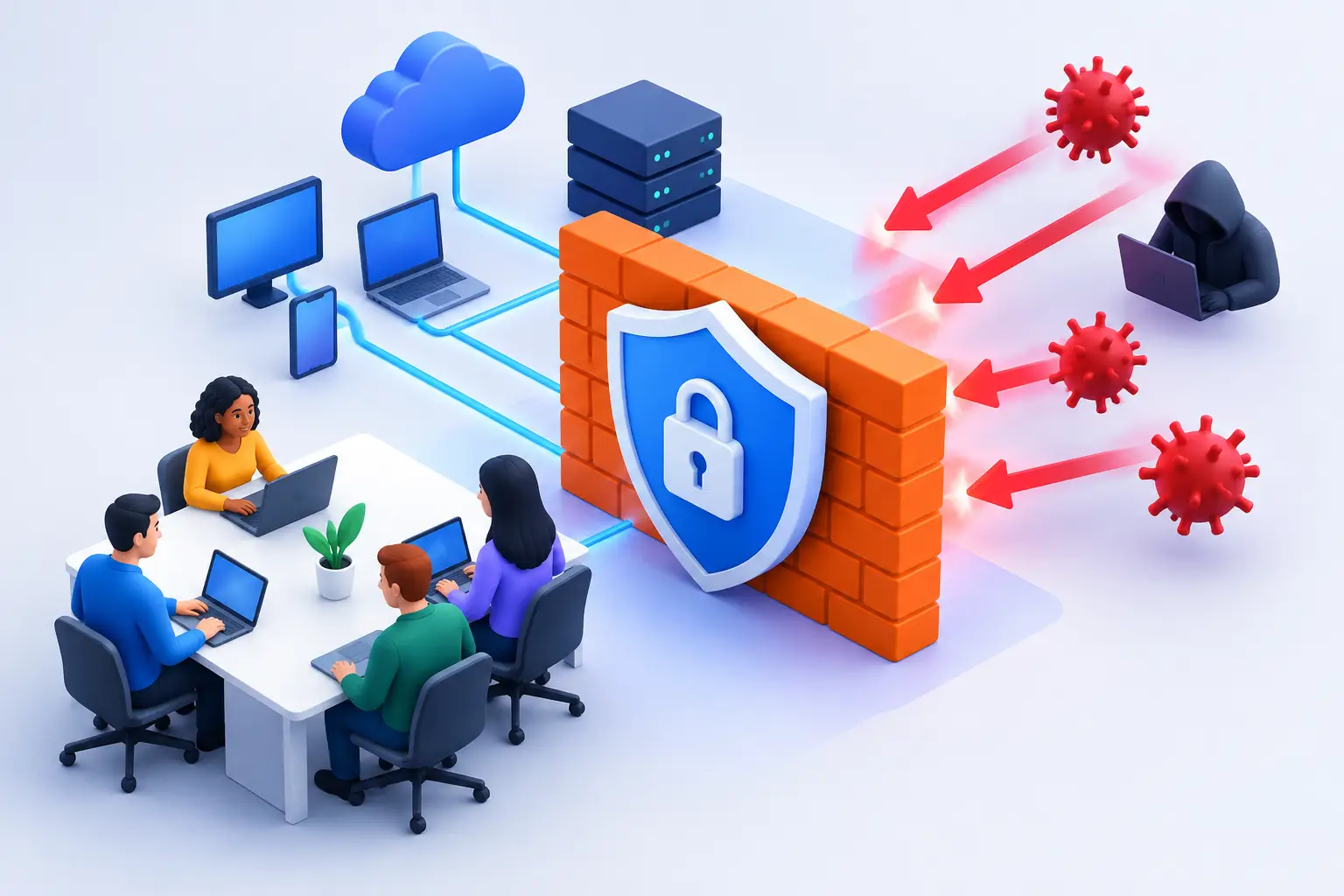
A server centralizes valuable business data, which makes it a security priority. The right setup begins with individual user accounts and permissions. Employees should have access to the folders and systems they need for their jobs, not unrestricted access to everything.
Avoid shared administrator passwords and former-employee accounts that remain active. Use strong unique passwords and multi-factor authentication wherever available, especially for remote access and cloud administration. Keep the operating system, server software, firewall, and workstations updated on a planned schedule.
Remote access deserves extra attention. Opening remote desktop services directly to the internet is a common and avoidable risk. A properly configured VPN, secure remote access tool, or managed identity solution is safer than taking shortcuts just to make working from home possible.
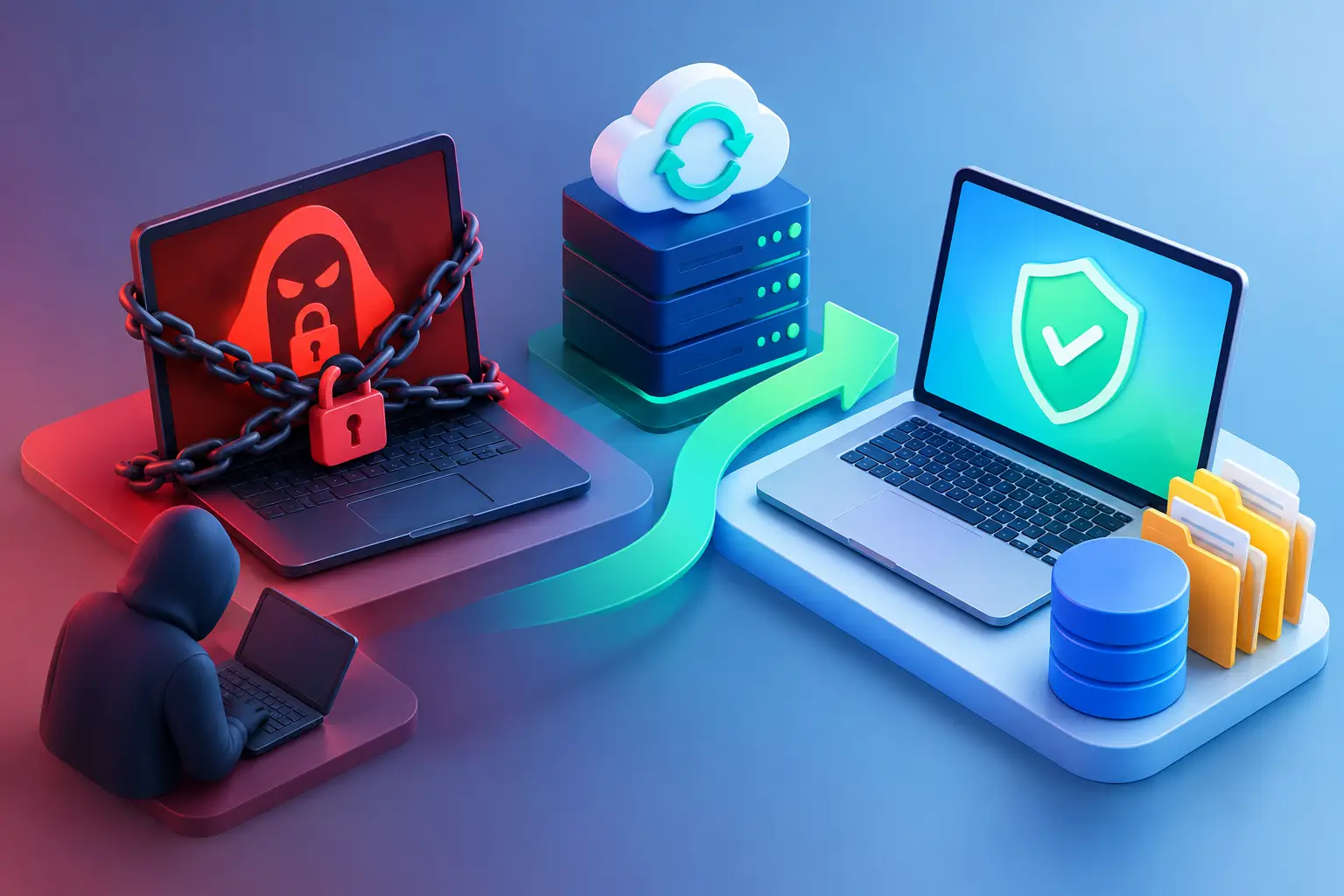
Ransomware planning is equally important. If one workstation is infected, the goal is to prevent that infection from encrypting every shared file on the server. Endpoint protection, limited permissions, patching, and backups that cannot be altered by a compromised user all work together. No single security product can carry the entire job.
Plan Backups Around Recovery, Not Just Storage
A backup is only useful if you can restore the files you need within the time your business can afford. Many offices discover too late that they have been copying data somewhere, but no one has verified that the copies are complete or recoverable.
A practical approach follows the 3-2-1 principle: keep three copies of important data, on two different types of storage, with one copy stored off-site. For example, you may have production data on the server, a local backup for fast recovery, and an encrypted off-site backup for disaster recovery.
Decide what deserves backup. This usually includes shared files, accounting data, databases, application settings, email where applicable, and key workstation data that is not stored centrally. Then decide how often backups run and how long you need to retain them. A company with active client projects may need frequent versions, while a small office with mostly static records may have different needs.
Test restores on a schedule. Recover a sample file, a folder, or an application database and confirm it opens correctly. Testing is how you find out whether your backup plan is a safety net or just a status message saying “successful.”
Account for the Network and the Room Around the Server
A well-chosen server will still feel slow if the network is outdated or poorly configured. Gigabit networking is a common baseline, but offices handling large media files, backups, or multiple virtual systems may benefit from faster connections. Managed switches, quality cabling, reliable wireless access points, and a properly configured firewall all affect day-to-day performance.
Put the server in a secure, clean, ventilated location. A closet can work if it does not overheat and is not also used to store cleaning supplies, leaking pipes, or stacks of boxes. Keep unauthorized people away from cables and power controls. Label equipment so that an employee does not unplug the server while looking for an outlet.
Internet reliability matters if your server supports remote work, cloud backups, or hosted phone systems. Consider a backup internet option if a connection outage would stop revenue-producing work. The best choice depends on your location, budget, and how long your team can operate without connectivity.
Budget for Ownership, Not Just the Initial Purchase
The server price is only one part of the cost. Include installation, operating system and software licensing, network upgrades, backup storage, firewall protection, electricity, replacement drives, and ongoing support. Hardware also has a life cycle. A server that is inexpensive today may become expensive if it lacks warranty coverage, has no room to expand, or cannot run the software you need next year.
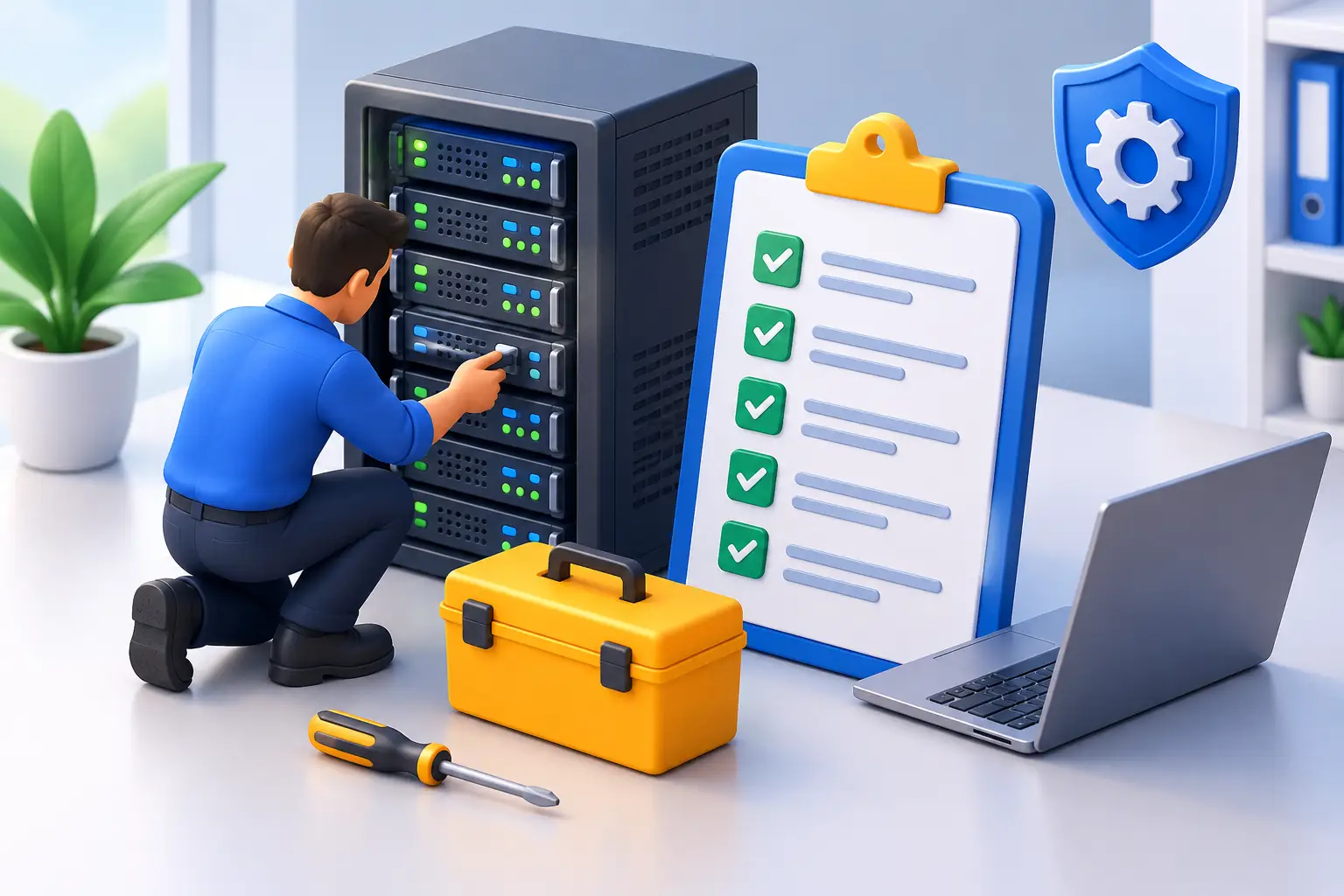
For many small offices, planning support is just as valuable as planning hardware. Someone should be responsible for checking backups, applying updates, reviewing storage health, documenting passwords and settings securely, and responding when alerts appear. Waiting until the server stops working usually means higher pressure, more downtime, and fewer affordable options.
Before committing, ask for a plain-language estimate that separates equipment, installation, and ongoing support. You should understand what is being installed, why it fits your business, and what future maintenance will look like. At Don’t Panic! Computer Repair, we can assess an office on-site, explain the practical options, and help build a server plan without burying you in technical jargon.
A good server plan gives your team a calmer workday: files are where they belong, access is controlled, backups are tested, and help is available before a small warning becomes a business interruption.